Developer Tutorials
Automate Daily Quote Videos with n8n and Google Sheets
Turn the next quote in Google Sheets into a vertical video, then save its MP4 link to the same row. Follow the n8n setup or use the Node.js companion.
 By Mina RamzyPublished
A sheet of approved quotes can become a dependable video queue. Add the wording and attribution once, then let n8n turn the next pending row into a vertical video and save the result beside its source.
This daily quote video workflow connects Google Sheets to Zvid. It reads one quote, adds moving footage and music, renders a quote scene followed by an author card, then writes done and the finished video URL back to the same row. It does not generate quotations, narrate them or publish to social accounts.
The main walkthrough uses n8n. A complete Node.js alternative follows for readers who prefer a local CSV and a script.
See what the workflow creates
Ralph Waldo Emerson · 10.8 seconds · 1080 × 1920 · music
Download the sample MP4 ↓
One row, two scenes
The quote appears over rain on a window. The second scene names the author, adds a short author note and finishes with a channel handle and call to action.
The supplied CSV contains this Emerson quote. Set poolIndexOverride to 2 to use the same rain-window pairing in n8n.
The quotation comes from Emerson's essay “Circles” in Essays, First Series. Use quotations you have checked, with appropriate attribution and permission for your intended use.
1. Get the workflow and prepare your accounts
Open Create daily quote videos from Google Sheets with Zvid on n8n or its Zvid workflow page. Use the maintained JSON and one-row CSV below for this walkthrough.
Watch the complete walkthrough
See the full workflow
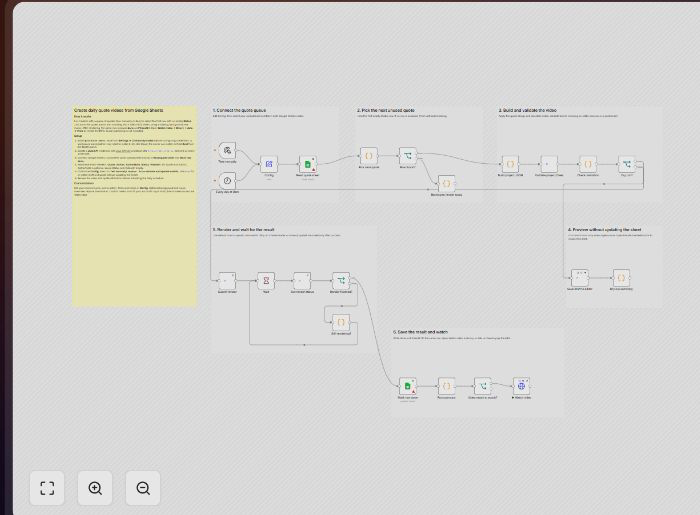
You need an n8n workspace that can install the Zvid package, a Zvid account with an API key and sufficient render credits, and a Google account with edit access to the Sheet. The supplied workflow needs no language model, voice-generation service or separate stock-media account.
2. Install Zvid, import the workflow and connect credentials
In n8n, open Settings → Community nodes and install @zvid/n8n-nodes-zvid before configuring credentials. A workspace owner or administrator may need to do this. On n8n Cloud, an owner or administrator can also search for the verified Zvid node in the nodes panel and install it there. The Zvid integration guide describes the integration.
Create an empty workflow, open its menu and select Import from File. Import the downloaded JSON and leave the schedule inactive while setting it up.
Connect Zvid
- Go to app.zvid.io/api-keys, click Create API key, give it a name such as
Daily quote videos, and copy the complete key before closing the dialog. - In Validate project (free), create a Zvid API credential. Paste the key and keep the base URL as
https://api.zvid.io. - Select that credential on Save draft to editor, Submit render and Get render status too.
Keep the key in credentials rather than in the Sheet or Config. See the API key guide for key management.
Connect Google Sheets
In Read quote sheet, create a Google Sheets OAuth2 API credential. On n8n Cloud, use Sign in with Google, choose the account that can edit your Sheet and approve the connection. Select the same credential in Mark row done.
For self-hosted n8n using a custom Google connection:
- Create or choose a project in Google Cloud. Enable Google Sheets API and Google Drive API.
- Configure the Google Auth Platform consent screen and audience. If the app is external and in testing, add your Google account as a test user.
- Create an OAuth client of type Web application. Copy the exact OAuth Redirect URL from the n8n credential into the client's authorized redirect URIs.
- Copy the Client ID and Client secret into the n8n credential, click Sign in with Google, approve access and save it.
Follow n8n's Google single-service OAuth setup for the console screens. n8n refreshes access through the saved OAuth connection, but an external app left in testing can require reauthorization after seven days. Resolve the app's consent status before depending on an unattended schedule.
3. Prepare one pending quote
Create a Google Sheet. Choose File → Import → Upload, select the example CSV and import it into a new sheet. Keep these exact column headings:
Quote,Author,AuthorNote,Status,VideoUrl
Nothing great was ever achieved without enthusiasm.,Ralph Waldo Emerson,Essayist and philosopher,,
Quote and Author are required. AuthorNote is optional and appears on the end card. Leave Status and VideoUrl empty.
In both Read quote sheet and Mark row done, choose the same spreadsheet and tab. Keep the supplied update mapping in Mark row done: it matches the captured row_number and writes Status and VideoUrl. Do not sort, insert or delete rows while a run is processing, because that row number must still identify the original quote.
Execute Read quote sheet on its own first. Confirm the output contains the headings, the Emerson quote and a row number. This is a useful credential and input check before submitting any video.
Open Config and set up the first preview:
| Setting | Shipped value | First-run action |
|---|---|---|
channelName |
@stillmind.daily |
Replace with your channel handle. |
ctaText |
Follow for a daily reset |
Use a short call to action. |
poolIndexOverride |
-1 |
Set 2 for the sample's rain-window background and music. |
musicVolume |
0.15 |
Keep it initially, then listen to the result. |
dryRun |
false |
Change to true for the initial preview. |
The workflow selects the first row with an empty Status, from top to bottom. Any nonempty value skips a row, not just done. If the selected row lacks a quote or author, fix it; the workflow does not silently skip malformed pending rows. If there are no pending rows, Nothing to render today ends the run without a render.
4. Preview the video and check the estimate
With dryRun: true, select Test manually and click Execute workflow. Build project JSON turns the selected row into the quote scene and author card. Validate project (free) checks that project and reports creditsRequired.
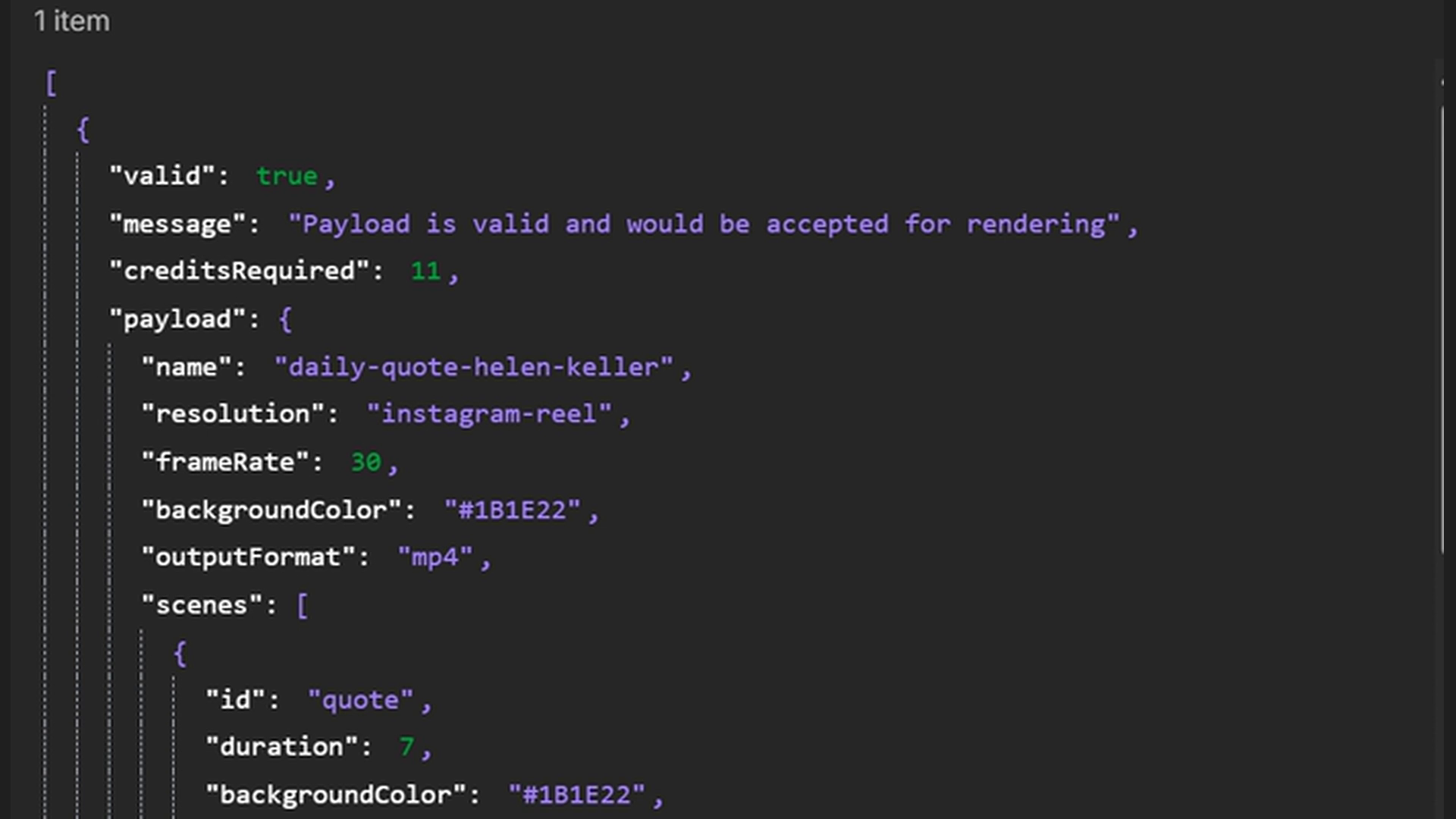
Open Dry run summary. When Save draft to editor succeeds, its editorLink opens the draft in the Zvid editor. Sign in to the same Zvid account and use the preview controls to play both scenes. Check the quote's line breaks, author name, note, music level and end card.
Validation and saving the draft do not consume render credits. Saving still needs an available editor project slot. If there is no editorLink, inspect Save draft to editor and resolve its error; a validation success is not proof that an editor draft was saved.
The Sheet stays unchanged during a dry run. Changes made only in the editor are not copied back into Config or the Google Sheet, so update those source settings if you want later scheduled videos to use the same changes.
5. Render, watch and save the result
Set dryRun: false and execute the workflow once. Submit render returns a job ID; the workflow then polls Get render status every 10 seconds until completion or its configured 20-minute timeout. The render lifecycle guide explains the difference between an accepted job and a completed video.
After completion, Mark row done writes done into Status and the finished MP4 URL into VideoUrl. Open ▶ Watch video, then Binary → data → View to play it. Choose Download to keep a local copy. Watching this file does not create another render.
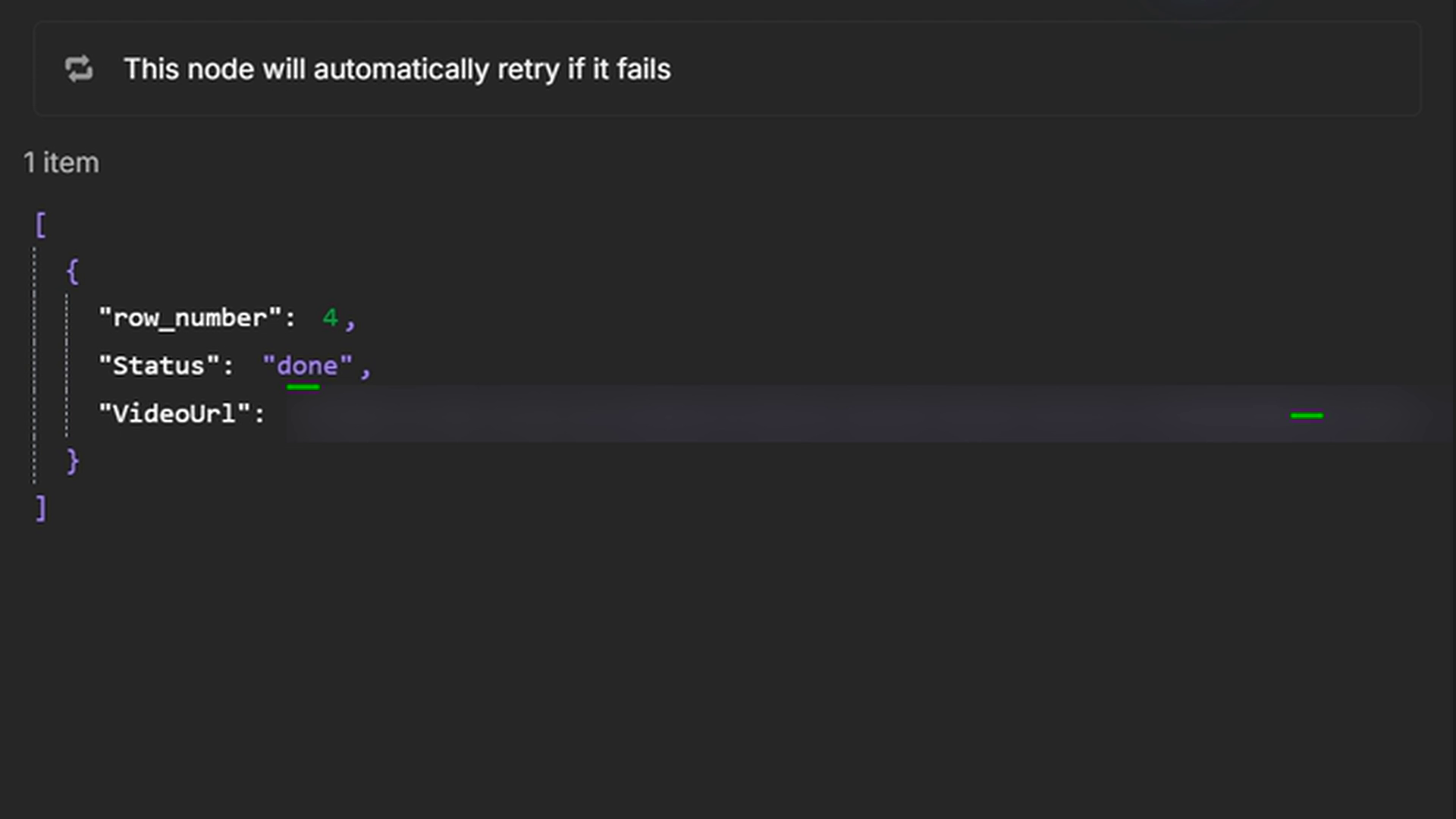
If a run times out, inspect its existing job ID before restarting. The job may still complete. If the video succeeds but the Sheet update fails, recover the completed URL and update that same row after checking its quote. Leaving it pending and rerunning the whole workflow can render it again.
6. Use the video from the Sheet
Open the VideoUrl or use n8n's download control, then upload the MP4 to your chosen social account. Review the wording, attribution, crop and music before publishing.
This workflow ends at the Sheet and the downloadable video. It does not upload to Instagram, YouTube or TikTok. If you add a publishing step, connect it only after a completed result is available and keep a clear record of which video has already been posted.
Render output links have an expiry based on the Zvid plan. Download files you want to retain; done records that a video was made, not that its hosted URL will remain available forever. See media asset lifetimes.
Customize, then enable the daily schedule
Restore poolIndexOverride: -1 to rotate through the five supplied background-and-music pairings: forest, ember, rain, clouds and shore. The choice uses the UTC date. Pin values 0 through 4 when you want a specific look.
Change quoteFont, uiFont, paperColor, mutedColor and inkColor in Config for your branding. Use backgroundVideoOverride or musicUrlOverride for your own suitable, publicly reachable media. The design adjusts type size for longer text, but you should still preview unusually long quotes and author names.
Add more approved rows with empty Status values. Then open Every day at 8am, choose your hour and confirm the workflow or instance timezone. Activate or publish the workflow in n8n to enable scheduled runs. The trigger's timezone and the UTC media rotation are separate settings.
Each execution handles one pending row. Avoid overlapping manual and scheduled runs: the Sheet does not reserve a row atomically, so two executions can choose the same quote. Changing the wording of a done row does not update its existing video. Create a new pending row when you deliberately want another render.
Costs and practical limits
The Emerson sample is 10.8 seconds and received an 11-credit validation quote. That is an example estimate, not a fixed price for every quote. Use Zvid's credit rules and the current validation response when changing duration or design.
For planning, 30 videos at an unchanged 11-credit quote would require 330 render credits. That arithmetic assumes one successful submission per video; retries, longer projects or other settings can change your usage. n8n hosting and Google account costs are separate.
The supplied flow performs no paid script generation, text-to-speech or transcription. Its principal operational limits are queue coordination, the lifetime of render URLs, media availability and the need to renew or repair external credentials when necessary.
Prefer Node.js?
The Node.js companion loads the same project builder from the maintained n8n JSON. It reads a local CSV, writes an updated CSV and downloads the MP4. It does not connect to Google Sheets, schedule itself or publish to social accounts.
Install Node.js 20 or later, extract the ZIP and open a terminal in its daily-quote-reels folder. Run:
npm ci
npm run check
npm test
These checks are local and the tests use mocked API responses; they do not spend render credits. Copy .env.example to .env in your file manager and fill in your own API key:
ZVID_API_KEY=zvid_your_key_here
Keep .env private. The default API origin is https://api.zvid.io. The package's data/quotes.csv contains three attributed quotes, with the same Emerson row first. The sample date below selects the rain-window pairing without changing config.json.
Run a remote validation and try to save an editor draft:
node src/index.js --date 2026-10-14 --dry-run
Inspect out/project.json and out/result.json. The latter contains the validation quote and an editorLink if saving the draft succeeded. After reviewing the quote and preview, this command submits a real render and spends credits:
node src/index.js --date 2026-10-14 --max-credits 11
--max-credits 11 rejects a higher or uncheckable validation quote before submission. It is a local guard, not an account-wide budget. If it stops the run, review the project and estimate before deliberately changing the limit.
On success, out/ contains the project, result.json with the job ID and finished URL, an updated quotes.csv and the MP4. The input CSV is unchanged. Continue from the updated queue on subsequent runs:
node src/index.js --data out/quotes.csv --out out --max-credits 11
This last command uses today's media rotation because it omits --date. Reusing data/quotes.csv instead would select Emerson again. A dry run does not advance the queue.
The CLI saves the accepted job ID before polling. On a timeout, inspect that ID before another submission; it has no automatic resume command. If the local download fails after completion, the saved URL and updated CSV remain available, so download the existing file instead of rendering again.
Start with one finished quote
Import the one-row CSV, preview its design and check the estimate. Render and download that video before adding a longer queue. Once the Sheet update works, set the daily hour and keep an eye on pending rows and failed executions.
Frequently asked questions
Does this workflow generate or narrate motivational quotes?
The supplied workflow does neither. You provide the quote and attribution in Google Sheets or the Node.js CSV. Zvid renders that text over footage with music, followed by an author card.
How does n8n decide which quote to render next?
The workflow chooses the first row whose Status is empty. Any nonempty status skips that row. A selected row must contain both Quote and Author; missing required text causes an error rather than silently choosing another row.
Does a dry run change my Google Sheet or spend render credits?
A dry run does not update the Google Sheet or consume Zvid render credits. It validates the project and attempts to save an editor draft. Check the returned editorLink to confirm that the draft was actually saved.
Why did the same quote render twice?
Overlapping executions or a failed Sheet update can leave the same row eligible for another run. Avoid concurrent runs and recover a completed job before retrying. In Node.js, use --data out/quotes.csv after a successful render because the original CSV deliberately stays unchanged.
Will this workflow post the video to Instagram or YouTube?
The supplied workflow does not publish to social platforms. It writes the completed video URL to the Sheet and provides an MP4 to watch or download. Upload it yourself or add a separate publishing integration after reviewing the output.
Can I use the Node.js example without Google Sheets?
Yes. The Node.js example reads a local CSV and uses a Zvid API key. It shares the n8n video builder but needs neither Google Sheets credentials nor an n8n instance. Schedule the script separately if you want recurring runs.
Where can I get help with a quote-video render?
Get Zvid support at https://zvid.io/contact. Include the job ID and error message, keeping API keys and Google credentials private.