Tutorials
Generate Faceless Videos with AI, JSON, and Zvid
Build coherent faceless videos from an approved script using Zvid scenes, media variables, narration, captions, conditions, templates, and visual QA.
By Mina RamzyPublished Updated
Generate Faceless Videos with AI, JSON, and Zvid
To generate faceless videos with JSON, structure an approved script into timed scenes, assign each scene a visual job, resolve media from a trusted library, align narration and captions to one timing source, and render the resulting project through a Zvid template. “Faceless” should mean the video does not require an on-camera presenter—not that it lacks authorship, evidence, or creative direction.
The common failure is a fluent voiceover laid over unrelated stock clips. It may technically be a video, but the visuals do not explain, prove, or reinforce the script. A premium workflow records why each shot is present and reviews the final timeline as a whole.
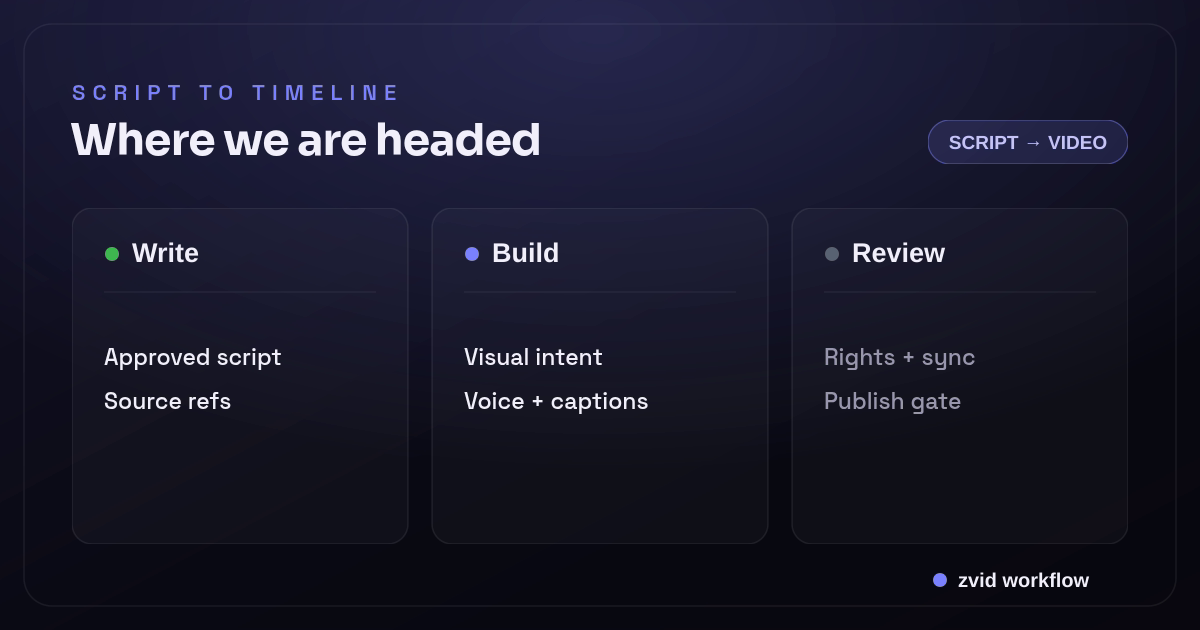
Write, Build, and Review form one reviewable Zvid workflow.
Decide what the format is responsible for
Faceless formats are useful for:
- Educational shorts and micro-lessons
- Product or workflow explainers
- Data and report summaries
- Narrated list or comparison formats
- Onboarding and help-center videos
- News or research summaries with verified sources
They are not a license to conceal sponsorship, impersonate a person, reuse media without permission, or present generated claims as fact. Preserve source, author, rights, disclosure, and approval records even if no presenter appears on screen.
Start from an approved script record
This illustrative example is a short lesson about better meeting notes:
{
  "contentId": "notes-method-008",
  "revision": 3,
  "title": "A three-part meeting note",
  "hook": "Most meeting notes record the conversation but lose the decision.",
  "segments": [
    {
      "id": "decision",
      "narration": "First, write the decision in one sentence.",
      "onScreen": "1. Decision",
      "visualIntent": "A clear decision card replacing a long transcript",
      "enter": 3.2,
      "exit": 7.0
    },
    {
      "id": "owner",
      "narration": "Second, name one owner for every next step.",
      "onScreen": "2. Owner",
      "visualIntent": "One task moving to one named owner",
      "enter": 7.0,
      "exit": 11.2
    },
    {
      "id": "date",
      "narration": "Third, attach a date that can be checked later.",
      "onScreen": "3. Date",
      "visualIntent": "A task card receiving a due date",
      "enter": 11.2,
      "exit": 15.4
    }
  ],
  "recap": "Decision, owner, date: three fields that make notes actionable.",
  "showCta": true,
  "cta": "Try the format in your next meeting",
  "sourceRefs": ["editorial-brief@3"],
  "approvalId": "APP-4421"
}
The example is original and instructional, so it does not need external factual claims. For research, health, finance, legal, or news content, every material statement needs a current, authoritative source and an appropriate expert or editorial review.
The application validates segment count, text limits, monotonic timing, total duration, source references, disclosure rules, and approval state before rendering.
Compile the script into a scene plan
The script record is editorial. The render plan adds approved media, voiceover, captions, and layout choices:
{
  "title": "A three-part meeting note",
  "hook": "Most meeting notes record the conversation but lose the decision.",
  "voiceoverUrl": "https://cdn.example.com/notes-method-008-r3.mp3",
  "captionsUrl": "https://cdn.example.com/notes-method-008-r3.vtt",
  "segments": [
    {
      "id": "decision",
      "onScreen": "1. Decision",
      "mediaAssetId": "AST-2101",
      "mediaUrl": "https://cdn.example.com/approved/decision-card.mp4"
    },
    {
      "id": "owner",
      "onScreen": "2. Owner",
      "mediaAssetId": "AST-2102",
      "mediaUrl": "https://cdn.example.com/approved/task-owner.mp4"
    },
    {
      "id": "date",
      "onScreen": "3. Date",
      "mediaAssetId": "AST-2103",
      "mediaUrl": "https://cdn.example.com/approved/task-date.mp4"
    }
  ],
  "showCta": true,
  "cta": "Try the format in your next meeting"
}
Preserve the link from visualIntent to selected mediaAssetId. It allows a reviewer to see whether the shot actually fulfills the intended communication job.
Resolve media deliberately
For each segment, choose one visual strategy:
- Demonstration: show the action described.
- Evidence: display the cited chart, source, or product state.
- Diagram: clarify a relationship or process.
- Context: establish a place or situation.
- Emphasis: use typography or motion to reinforce a key phrase.
- Continuity: bridge two ideas without adding a new claim.
Search terms alone are not enough. A clip tagged “productivity” may show a laptop but communicate nothing about decisions, owners, or dates.
Use an approved media library with asset IDs, rights status, orientation, duration, and focal-point metadata. Zvid can consume account uploads, public URLs, and stock media added through the editor. Your workflow remains responsible for license scope, attribution if required, subject consent, and long-term availability.
When no suitable clip exists, a clean Zvid-rendered text or diagram scene is better than misleading B-roll.
Build the visual grammar in the Zvid Editor
Use the Zvid Editor to design the canvas, scene timing, media crops, typography, transitions, audio, and subtitle lane. The editor project is the same JSON shape used by the API, so the approved creative can be saved as a template instead of rebuilt in code.
For a 9:16 educational short, define:
- A hook scene with immediate topic context
- One repeated scene grammar for the three steps
- A recap that visually groups the method
- An optional CTA
- A caption style tested over light and dark media
- A safe text region that avoids expected player controls
The creative team should review the template with real long and short values before it becomes an API dependency.
Expose a narrow variable contract
{
  "variables": {
    "title": "A three-part meeting note",
    "hook": "Most meeting notes record the conversation but lose the decision.",
    "segments": [],
    "recap": "Decision, owner, date: three fields that make notes actionable.",
    "showCta": true,
    "cta": "Try the format in your next meeting",
    "voiceoverUrl": "https://cdn.example.com/voiceover.mp3",
    "captionsUrl": "https://cdn.example.com/captions.vtt",
    "accent": "#F8D66D"
  }
}
Keep font, layout, transition, caption treatment, and brand rules in the template. The application should not allow generated content to supply arbitrary HTML, CSS, JavaScript, template IDs, callback URLs, or output settings.
Repeat the narrative unit with iterate
{
  "id": "step",
  "iterate": "segments",
  "iterateAs": "segment",
  "duration": 4.2,
  "transition": "slideleft",
  "visuals": [
    {
      "type": "VIDEO",
      "src": "{{segment.mediaUrl}}",
      "width": 1080,
      "height": 1920,
      "resize": "cover",
      "volume": 0
    },
    {
      "type": "TEXT",
      "text": "{{segment.onScreen}}",
      "x": 72,
      "y": 1320,
      "width": 900
    }
  ]
}
Zvid expands one scene per segment. iterateAs gives the current item a readable name, and {{index}} is available if the design needs a progress marker.
Use iteration only when the segment grammar is genuinely consistent. An evidence-heavy chart scene may need its own layout and should be represented as a separate condition or template family.
The fixed duration above matches this illustrative script. For variable narration, compute an approved scene plan upstream or use template variants with tested timing ranges. Preview the actual resolved project before rendering.
Keep narration, captions, and scenes on one clock
Generate or record the final narration before freezing caption and scene timing. Then align:
- Narration audio start and end
- Segment boundaries
- Caption phrases or words
- On-screen emphasis
- Media trims and transitions
Zvid audio elements accept a remote src, timeline enter and exit, source trim fields, volume, and speed. Use speed changes sparingly; altering narration speed can hurt intelligibility.
{
  "audios": [
    {
      "src": "{{voiceoverUrl}}",
      "enter": 0,
      "exit": 20,
      "volume": 1
    }
  ]
}
Zvid subtitles can use SRT/VTT or word-timed caption data. Captions should match the final audio exactly, use readable phrase breaks, and avoid colliding with essential visuals.
For detailed timing mechanics, see the official Zvid timeline and scenes guide.
Use conditions for optional structure
{
  "id": "cta",
  "condition": "{{showCta}}",
  "duration": 2.2,
  "visuals": [
    {"type": "TEXT", "text": "{{cta}}", "position": "center-center"}
  ]
}
The application applies the channel and content policy, then passes an explicit boolean. Zvid's condition does not evaluate business expressions. If showCta is false, the scene is pruned rather than rendered as an empty card.
Other controlled branches might include a source card, sponsor disclosure, content warning, translated title, or recap. Keep required disclosures outside model control.
Preview before a final render
The editor Variables panel resolves placeholders and previews condition and iteration states. A stored template also exposes POST /api/templates/{id}/preview.
Preview fixtures should include:
- Minimum and maximum segment count
- Longest valid hook, step label, recap, and CTA
- CTA on and off
- Source or disclosure branch on and off
- Portrait, landscape, light, and dark media
- Caption lines with long words and punctuation
- Narration at each supported duration class
Unresolved placeholders are a validation error, but a resolved project can still be visually poor. Use preview for data correctness and stage review; use a rendered golden set for motion, encoding, audio, and transitions.
Submit the stored template
{
  "template": "tpl_xxxxxxxxxxxxxxxxxxxx",
  "variables": {
    "title": "A three-part meeting note",
    "hook": "Most meeting notes record the conversation but lose the decision.",
    "segments": [
      {"onScreen": "1. Decision", "mediaUrl": "https://cdn.example.com/approved/decision-card.mp4"},
      {"onScreen": "2. Owner", "mediaUrl": "https://cdn.example.com/approved/task-owner.mp4"},
      {"onScreen": "3. Date", "mediaUrl": "https://cdn.example.com/approved/task-date.mp4"}
    ],
    "recap": "Decision, owner, date: three fields that make notes actionable.",
    "showCta": true,
    "cta": "Try the format in your next meeting",
    "voiceoverUrl": "https://cdn.example.com/notes-method-008-r3.mp3",
    "captionsUrl": "https://cdn.example.com/notes-method-008-r3.vtt"
  },
  "overrides": {"name": "notes-method-008-r3"},
  "webhookUrl": "https://content.example.com/hooks/zvid"
}
Zvid validates the resolved project and returns a job ID when accepted. Persist the job ID beside content revision, script, selected media IDs, voiceover, captions, template revision, and approval state.
Use signed registered webhooks or a per-request callback for terminal delivery. Completion moves the asset into media review; it should not silently publish it.
Review the video as a sequence
Inspect:
- First frame and first sentence work together.
- Every shot fulfills its recorded visual intent.
- No media implies a fact the narration does not support.
- On-screen labels appear during the matching spoken segment.
- Captions match the final voiceover.
- Crops preserve important subjects.
- Transitions support the argument instead of distracting from it.
- Music and sound effects do not reduce speech clarity.
- Sources and disclosures are present when required.
- Final CTA follows content and channel policy.
Review opening, middle, final frame, and full playback. A frame sampler cannot detect an audio mismatch or an awkward half-second cut.
At scale, sample across topic, template, media source, language, duration, and generation-model version. Route novel or high-risk outputs to mandatory human review.
AI faceless video generator vs authored faceless workflow
An AI faceless video generator may promise to turn one prompt into a finished clip. An authored faceless workflow separates the jobs: a writer approves the script, a media process resolves licensed visuals, a voice service produces narration, captions follow the final audio, and a template controls the composition. That separation is less magical and much easier to trust.
AI can still help. A language model such as ChatGPT may propose an outline, and a voice platform such as ElevenLabs may be one possible upstream provider; neither should bypass source review, rights checks, or pronunciation QA. Store the exact inputs and provider output before the media enters Zvid. Brand and factual claims should come from the approved record, not from a viral-video prompt.
This also clarifies what “create faceless videos with AI” means in a production system. AI assists content creation or media generation; the application validates; the video editor or reviewer approves; and Zvid renders the explicit JSON. That model can automate TikTok, training, and educational formats without making a single all-in-one platform responsible for truth, licensing, and delivery.
Orchestrate faceless-video nodes by artifact
An n8n workflow or AI agent can coordinate script, media, voice, and render nodes, but every transition should produce a stored artifact. A script node returns an approved revision; a Leonardo AI or other image node returns a sourced media record; a voice node returns audio and pronunciation notes; and the Zvid node returns a render job ID.
That makes it possible to customize or edit one stage without replaying the entire automation. It also distinguishes a faceless channel strategy from the technical task of making faceless videos using structured data. The AI-powered pieces can change over time while the video generation contract and final review remain stable.
Real Zvid example: a narrated educational short
The video below is rendered by Zvid from the edu-educational-short example. It is a vertical, faceless clip whose captions carry the whole message over approved B-roll: a script becomes a reviewed timeline, each beat maps to licensed media, and conditions plus iteration resolve the reusable structure — ending on a prompt to inspect the rendered short.
A real Zvid render adapted from the published edu-educational-short example for this workflow.
This working video is the evidence for the workflow. The inline Zvid-rendered map explains how the script, timing, media intent, and review stay connected.
Frequently asked questions
Does a faceless video need a voiceover?
No. It can use text, captions, music, sound design, or diagrams. For narrated formats, voiceover and captions need one reviewed timing source.
Can AI choose all the B-roll automatically?
AI can propose search intent or rank candidates, but production media should pass rights, safety, relevance, crop, and visual-quality checks. Uncertain matches should go to review.
How can variable-length scripts fit one template?
Use a bounded segment array with iteration, create timing classes or a trusted scene compiler, and preview every supported boundary. Do not let arbitrary-length scripts stretch one untested layout.
Can a completed faceless video publish automatically?
Only if the workflow explicitly authorizes that risk. Most external content should pass factual, rights, visual, caption, and disclosure review after rendering.
Faceless should still feel authored
A premium presenter-free video has a clear source, a deliberate script, visuals chosen for meaning, one timing model, readable captions, and an accountable approval. Zvid makes the repeatable creative and rendering mechanics programmable through the editor, templates, variables, conditions, iteration, jobs, and webhooks.
The quality comes from preserving editorial intent through that system—not from maximizing the number of clips generated.