Tutorials
Generate TikTok, Reels, and Shorts from JSON + AI
Build a Zvid template for TikTok, Instagram Reels, and YouTube Shorts with safe-area variants, captions, variables, bulk renders, and QA.
By Mina RamzyPublished Updated
Generate TikTok, Reels, and Shorts from JSON + AI
To generate TikTok videos, Instagram Reels, and YouTube Shorts from JSON, start with one approved content record and render platform-specific variants from a stored Zvid template. Keep the story, media rights, and campaign identity shared. Vary safe-area positions, end cards, captions, duration rules, and platform labels as controlled variables.
This is more reliable than exporting one vertical file and assuming every app will display it the same way. All three products support vertical viewing, but their interface overlays, upload behavior, music rules, cover treatment, and classification rules differ. Those rules also change, so format policy belongs in versioned configuration and pre-publish QA—not frozen in a blog post or scattered through code.
As of this review, TikTok's official creative guidance emphasizes full-screen 9:16 and safe-zone checks; Instagram accepts Reels between 1.91:1 and 9:16 and documents a minimum 720-pixel resolution and 30 FPS; YouTube classifies square or vertical uploads up to three minutes as Shorts for standard channels, with additional music and Content ID considerations for videos over one minute. Verify the current TikTok guidance, Instagram Reels specifications, and YouTube Shorts rules before a production campaign.
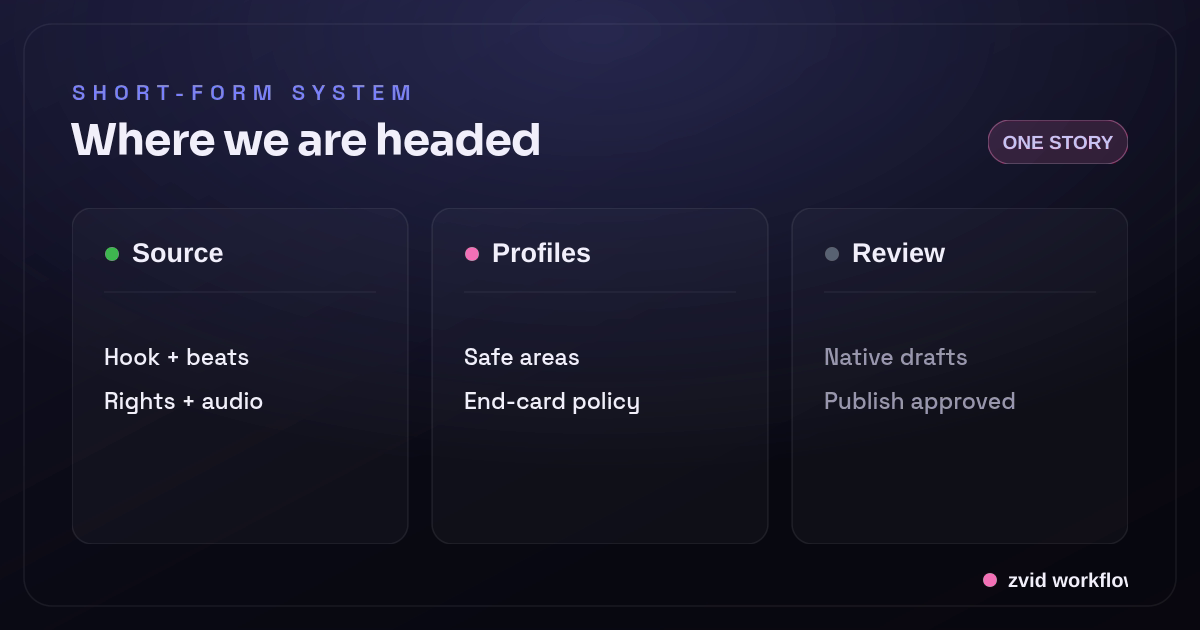
Rendered in Zvid from a reusable template with article-specific variables.
Share the source, not every layout decision
The content record should describe the approved message:
{
  "contentId": "orbit-tip-042",
  "campaign": "orbit-workflows-july",
  "hook": "Three follow-ups your CRM should write for you",
  "beats": [
    {
      "title": "Summarize the call",
      "mediaUrl": "https://cdn.example.com/orbit/summary.mp4"
    },
    {
      "title": "Draft the next step",
      "mediaUrl": "https://cdn.example.com/orbit/draft.mp4"
    },
    {
      "title": "Assign the owner",
      "mediaUrl": "https://cdn.example.com/orbit/assign.mp4"
    }
  ],
  "cta": "See the full workflow",
  "voiceoverUrl": "https://cdn.example.com/orbit/tip-042.mp3",
  "captionsUrl": "https://cdn.example.com/orbit/tip-042.vtt",
  "rightsId": "rights-2026-1188"
}
The platform profile should describe delivery behavior:
{
  "platform": "instagram-reels",
  "profileVersion": "2026-07-16",
  "width": 1080,
  "height": 1920,
  "headlineY": 300,
  "captionBottom": 320,
  "showEndCard": true,
  "endCardLabel": "More in bio"
}
Separating the two lets you update a safe area without changing approved copy or create a new channel variant without duplicating the source record.
Build the master creative in the Zvid Editor
Start with a 1080 × 1920 project at 30 FPS, then design on the canvas and timeline. The current Zvid Editor can manage scenes, media, text, audio, subtitles, variables, and template previews in the same project JSON used by the API.
A practical short has four parts:
- Hook — the first visual and sentence establish the payoff.
- Proof or steps — a bounded sequence of useful beats.
- Pattern changes — media, layout, or pacing changes that support meaning.
- CTA or clean ending — optional and platform-aware.
Use the editor to solve typography, rhythm, crop behavior, and brand design. Do not ask API code to become a layout engine. When the creative passes review, save it as a template and give engineering the template ID and variable contract.
Define variables around approved change points
{
  "variables": {
    "hook": "Three follow-ups your CRM should write for you",
    "beats": [
      {"title": "Summarize the call", "mediaUrl": "https://cdn.example.com/summary.mp4"}
    ],
    "cta": "See the full workflow",
    "voiceoverUrl": "https://cdn.example.com/voiceover.mp3",
    "captionsUrl": "https://cdn.example.com/captions.vtt",
    "headlineY": 300,
    "captionBottom": 320,
    "showEndCard": true,
    "endCardLabel": "More in bio"
  }
}
Expose values the campaign is expected to change. Keep font families, animation curves, visual hierarchy, brand spacing, and transition style inside the template unless they are part of a governed brand profile.
Variables can be strings, numbers, booleans, arrays, and objects. Placeholders work in text, URLs, colors, and numeric fields. The editor's preview toggle resolves them so creators can review actual copy instead of {{hook}}.
Turn story beats into scenes with iterate
Use a bounded array to generate one scene per beat:
{
  "id": "beat",
  "iterate": "beats",
  "iterateAs": "beat",
  "duration": 2.8,
  "transition": "slideleft",
  "visuals": [
    {
      "type": "VIDEO",
      "src": "{{beat.mediaUrl}}",
      "width": 1080,
      "height": 1920,
      "resize": "cover",
      "volume": 0
    },
    {
      "type": "TEXT",
      "text": "{{beat.title}}",
      "x": 540,
      "y": 620,
      "anchor": "center-center"
    }
  ]
}
Zvid expands this scene once per item. {{beat}} refers to the current object and {{index}} exposes its zero-based position. Bound the array in your application schema; a short-form template designed for three or four beats should not silently accept forty.
Iteration is not random montage generation. Every beat still needs an editorial purpose, a suitable crop, and timing that matches narration.
Model safe areas as reviewed profiles
Platform interfaces can place captions, buttons, usernames, descriptions, and controls over different parts of the video. Device and app changes make hard-coded “universal safe area” diagrams unreliable.
Use this process instead:
- Create one platform profile per output target.
- Keep essential text away from the profile's reserved top, bottom, and side regions.
- Render a representative file.
- Upload it privately or as a draft to the current native platform.
- Inspect on more than one phone size.
- Update the profile version when the UI changes.
In Zvid, numeric variables can reposition a headline, CTA, or caption container without duplicating the entire creative. If the visual structure differs materially—such as a YouTube-specific end card—duplicate the template or use a boolean condition rather than building a maze of coordinates.
Use conditions for controlled platform branches
{
  "id": "end-card",
  "condition": "{{showEndCard}}",
  "duration": 2,
  "visuals": [
    {
      "type": "TEXT",
      "text": "{{endCardLabel}}",
      "position": "center-center"
    }
  ]
}
Zvid's condition accepts a boolean or boolean placeholder; it is not an expression language. Calculate platform policy in application code and send showEndCard: true or false.
Keep branching visible. If more than a few large sections differ, maintain separate platform templates that share a content schema. Clarity is more valuable than forcing every channel into one project.
Treat captions as part of the creative
Short-form video is often watched with sound off or in noisy environments. Captions should be designed, timed, and reviewed—not added as an unstyled afterthought.
Zvid supports subtitle configuration and imported SRT/VTT sources as well as word-timed captions. Choose based on the source you actually possess:
- Use SRT or VTT when a transcription service already produces a timed file.
- Use word-timed captions when the application has trustworthy word boundaries.
- Use phrase-level segments when word timing is not reliable enough for karaoke-style animation.
Keep captions synchronized to the final voiceover. If the narration changes, regenerate timing and preview again. Avoid placing brand text, captions, and native app UI in the same lower region.
Render channel variants with one bulk request
Once the template is approved, use Zvid's bulk endpoint to submit one variable set per platform:
{
  "template": "tpl_xxxxxxxxxxxxxxxxxxxx",
  "name": "orbit-tip-042-platforms",
  "variables": {
    "hook": "Three follow-ups your CRM should write for you",
    "beats": [
      {"title": "Summarize the call", "mediaUrl": "https://cdn.example.com/summary.mp4"},
      {"title": "Draft the next step", "mediaUrl": "https://cdn.example.com/draft.mp4"},
      {"title": "Assign the owner", "mediaUrl": "https://cdn.example.com/assign.mp4"}
    ],
    "voiceoverUrl": "https://cdn.example.com/tip-042.mp3",
    "captionsUrl": "https://cdn.example.com/tip-042.vtt"
  },
  "items": [
    {
      "name": "orbit-tip-042-tiktok",
      "variables": {"headlineY": 320, "captionBottom": 360, "showEndCard": false, "endCardLabel": ""}
    },
    {
      "name": "orbit-tip-042-reels",
      "variables": {"headlineY": 300, "captionBottom": 320, "showEndCard": true, "endCardLabel": "More in bio"}
    },
    {
      "name": "orbit-tip-042-shorts",
      "variables": {"headlineY": 280, "captionBottom": 300, "showEndCard": true, "endCardLabel": "Watch the full guide"}
    }
  ],
  "webhookUrl": "https://app.example.com/hooks/zvid"
}
Batch-level variables are merged under every item; item variables supply the platform profile. Each accepted item becomes an independent job. Invalid rows appear in itemErrors by index, so keep the source mapping and resubmit only failed variants.
Build a visual QA matrix
Automation should produce reviewable candidates, not bypass creative judgment. For each platform variant, check:
- First frame communicates the topic without relying on audio.
- Hook remains readable at phone size.
- Text stays clear of current UI overlays.
- Every video and image crop preserves the subject.
- Captions match the voiceover and do not collide with key visuals.
- No placeholder or empty optional block appears.
- CTA wording is valid for that platform and campaign.
- Audio and stock-media rights cover the intended channel.
- Output duration and format pass current platform rules.
- A poster frame or cover is deliberately selected where the platform supports it.
Review the opening, one middle beat, the final frame, and continuous playback. Frame checks catch layout issues; playback catches rhythm, cuts, and audio problems.
Keep rendering separate from publishing
Zvid returns a video URL after rendering. Publishing to TikTok, Instagram, or YouTube is a separate integration with its own authentication, metadata, scheduling, moderation, and review requirements.
A safe state model is:
draft -> rendered -> media_approved -> copy_approved -> scheduled -> published
Do not make a render.completed webhook publish automatically unless that behavior is explicitly approved and reversible. Store platform account, caption copy, hashtags, rights evidence, approver, and scheduled time separately from the render job.
Measure creative variants, not only render throughput
Stable source IDs let you join platform analytics back to the exact content and template version. Record:
- Content ID and campaign ID
- Platform profile version
- Zvid template ID and revision
- Render job ID and output checksum
- Hook or CTA variant ID
- Publish ID and timestamp
Use platform-native metrics with care because definitions differ and can change. Compare variants within the same platform and time window before making creative decisions.
Connect automation tools without surrendering the template
An automation tool such as n8n or Make can orchestrate the workflow, but it should not become the creative source of truth. A trigger can fetch an approved record, call a REST API, store the job ID, and route the completed asset. The Zvid template should continue to own layout, timing, captions, safe areas, and the platform-specific end card.
The same boundary applies to AI video. JSON prompts may help an upstream model propose a hook or short script, while a video editor or reviewer approves the copy and media. Only the approved values should enter the render variables. That prevents a different AI interpretation from changing every TikTok video, Reel, or Short in a batch.
“Generate video automatically” therefore still includes decisions. The application chooses the profile, checks the source rights, previews a boundary case, and records approval. The renderer creates the video content described by the template; the publishing connector handles the native upload and metadata after review. This separation is what makes short-video automation repeatable instead of merely fast.
Use AI inputs without turning the render into a prompt
An AI video generator, Canva workflow, voice provider such as ElevenLabs, or another creator tool may supply one approved input. Keep each provider behind a small record containing source, revision, rights state, and URL. The JSON video template should never depend on whichever temporary node happened to run in n8n or Make.com.
This gives the team one stable video workflow for TikTok, Reels, and Shorts. AI can propose a short video hook; a reviewer can edit it; the REST API receives the approved variables; and Zvid renders the platform profile. “Videos with AI” then describes a governed input path, not an excuse to bypass captions, safe-area review, or native publishing checks.
Use the Zvid creative library for a reviewed render
For assisted video creation, use a clean, step-by-step path: plan the brief, inspect a matching Zvid example, adapt declared variables, preview or validate the resolved project, render one video, and review the output. That is safer than asking a model to write a JSON payload from plain English and sending it directly to production.
Store the clean JSON, selected example slug, variables, job ID, and review result in the project record or a GitHub review artifact. Automation can coordinate the API calls, but approval still belongs to the workflow. This is a practical use case for AI video content: a planning assistant can help navigate a constrained creative library while Zvid preserves the designed layout and render contract.
Real Zvid example: one story, reviewed vertical output
The video below is rendered by Zvid from the social-storytelling example and adapted to the three-beat content model above. It uses a real vertical timeline, request variables, repeated story beats, captions, and a conditional end card.
A real Zvid render adapted from the published social-storytelling example for this workflow.
The demo proves the rendering workflow. The format map above explains how the same content becomes reviewed platform variants without pretending a single export is always universal.
Frequently asked questions
Can I use the same video for TikTok, Reels, and Shorts?
You can share a 9:16 master and content record, but review platform-specific safe areas, duration and music rules, end cards, covers, and native UI before publishing. Separate variants are often safer.
Does Zvid publish directly to social platforms?
Zvid renders the video or image and returns the output. Social publishing is a separate workflow that should preserve account authorization, metadata, approval, scheduling, and platform response IDs.
What is the best resolution for vertical short-form video?
1080 × 1920 is a practical 9:16 master for this workflow. Confirm each platform's current upload specifications and any account-specific behavior before production.
Should platform variants be separate templates?
Use variables and simple conditions when only positions or small end-card choices differ. Use separate templates when the story structure, timing, or visual hierarchy differs materially.
Build a short-form system, not a file factory
High-quality short-form automation begins with governed content, a strong vertical template, explicit platform profiles, caption discipline, and native-app QA. Zvid supplies the editor-to-API project, variables, conditions, iteration, bulk jobs, and completion events. Your workflow still owns rights, approval, publishing, and learning from results.
That combination lets a team scale output without turning three distinct audience surfaces into one generic video.