Tutorials
Sync Voiceover, Captions, and Scene Timing in Zvid
Keep one timing source for Zvid narration, word captions, scene-local visuals, transitions, and media trims with formulas, JSON, validation, and QA.
By Mina RamzyPublished Updated
Sync Voiceover, Captions, and Scene Timing in Zvid
To sync voiceover, captions, and scene timing in Zvid, keep one reviewed global timing record and compile every other timeline from it. Narration audio and root-level subtitles use global project seconds. Each scene has a local clock where zero is that scene's start. Video source trims have another clock inside the media file. Transitions overlap adjacent scenes and therefore change scene start calculations.
Most drift comes from editing these clocks independently: a script is retimed, scene durations remain old, captions come from a different audio revision, and B-roll uses source offsets as if they were project times. A single timing authority prevents that class of failure.
The behavior in this guide follows Zvid's current Scenes, Audio Elements, Subtitle, and Editor Timeline documentation.
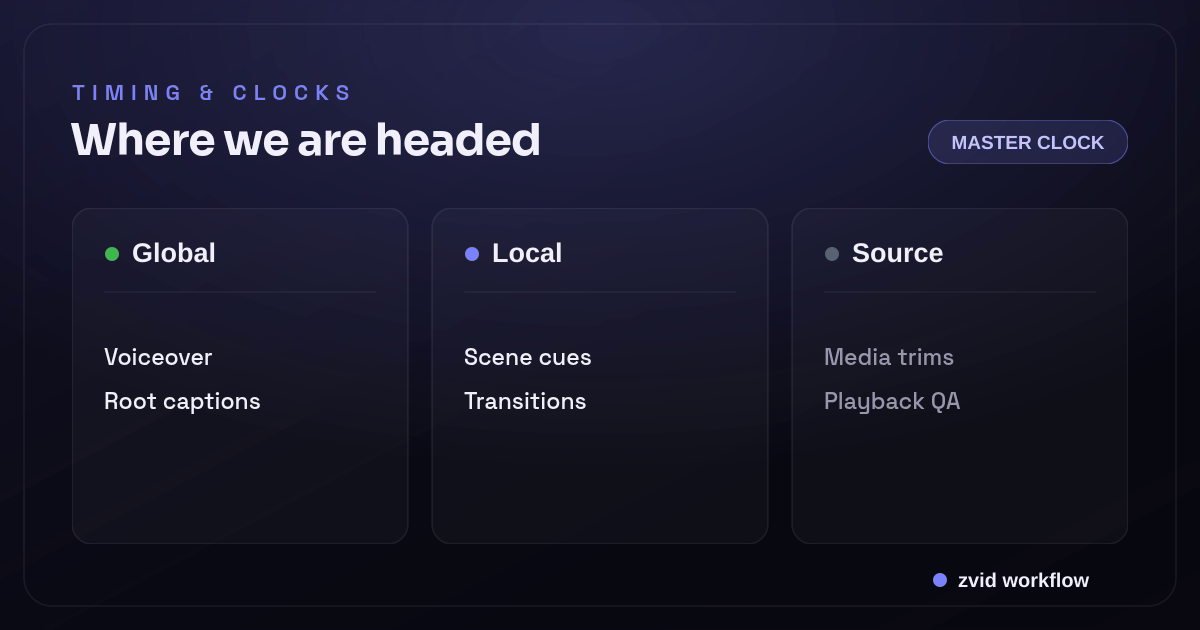
Global, Local, and Source form one reviewable Zvid workflow.
Start with the final narration revision
Choose an authority:
- Final recorded voiceover plus aligned transcript
- Final synthesized voiceover plus generated or aligned word timings
- A reviewed timed script that is used to produce the final audio without changing wording
The safest order is:
- Approve the script.
- Record or synthesize the voiceover.
- Align the exact spoken words to the final audio.
- Review and correct transcript and word boundaries.
- Group words into narrative segments.
- Derive scene starts, durations, captions, and visual cues.
If narration changes, create a new timing revision. Do not patch only the subtitle text and leave old word times.
Define one timing record
This illustrative recipe short uses global seconds:
{
  "timingRevision": "margherita-voice-r4",
  "audioUrl": "https://cdn.example.com/recipes/margherita-r4.mp3",
  "audioDuration": 18.6,
  "segments": [
    {
      "id": "hook",
      "start": 0.0,
      "end": 3.1,
      "text": "A great margherita starts with heat, not extra toppings.",
      "words": [
        {"text": "A", "start": 0.08, "end": 0.22},
        {"text": "great", "start": 0.22, "end": 0.52},
        {"text": "margherita", "start": 0.52, "end": 1.18},
        {"text": "starts", "start": 1.18, "end": 1.52},
        {"text": "with", "start": 1.52, "end": 1.72},
        {"text": "heat,", "start": 1.72, "end": 2.10},
        {"text": "not", "start": 2.18, "end": 2.40},
        {"text": "extra", "start": 2.40, "end": 2.72},
        {"text": "toppings.", "start": 2.72, "end": 3.08}
      ],
      "visualCues": [
        {"id": "heat-label", "start": 1.65, "end": 2.35}
      ]
    },
    {
      "id": "stretch",
      "start": 3.1,
      "end": 8.0,
      "text": "Stretch the dough gently and keep air around the edge.",
      "words": [],
      "visualCues": []
    },
    {
      "id": "top",
      "start": 8.0,
      "end": 13.3,
      "text": "Add a light layer of tomato, mozzarella, and basil.",
      "words": [],
      "visualCues": []
    },
    {
      "id": "bake",
      "start": 13.3,
      "end": 18.6,
      "text": "Bake until the crust lifts and the cheese just begins to color.",
      "words": [],
      "visualCues": []
    }
  ]
}
The food instructions are illustrative. The structure is what matters:
- Every segment uses global start and end seconds.
- Word times use the same global clock.
- Visual cue times use the same global clock.
audioDurationmatches the final audio revision.- The last segment ends at the intended project end.
Store the script checksum, audio checksum, alignment tool/version, human corrections, and approval ID with this record.
Know the four clocks in a Zvid project
1. Project/global clock
Root-level audio, subtitles, and global visuals use the final video timeline. A caption at start: 8 begins eight seconds into the rendered output.
2. Scene-local clock
Every scene starts at local time zero. An element with enterBegin: 0.5 inside the third scene appears half a second after that scene starts, not half a second after the whole video starts.
3. Source-media clock
videoBegin and videoEnd select a range inside the input video. audioBegin and audioEnd select a range inside an audio file.
4. Transition overlap
A scene transition starts the next scene before the current scene fully ends. The output duration is the sum of scene durations minus transition overlaps.
Label timing fields by clock in application code. A plain object with several properties named start is easy to misuse.
Compile hard-cut scenes from global segments
With no transitions, conversion is direct:
scene duration_i = segment end_i - segment start_i
scene local cue start = cue global start - segment global start
scene local cue end = cue global end - segment global start
type Segment = {
  id: string;
  start: number;
  end: number;
  text: string;
  visualCues: { id: string; start: number; end: number }[];
};

function hardCutScene(segment: Segment, mediaUrl: string) {
  return {
    id: segment.id,
    duration: roundTime(segment.end - segment.start),
    visuals: [
      {
        type: 'VIDEO',
        src: mediaUrl,
        resize: 'cover',
        volume: 0,
      },
      ...segment.visualCues.map((cue) => ({
        type: 'TEXT',
        text: cue.id,
        enterBegin: roundTime(cue.start - segment.start),
        exitEnd: roundTime(cue.end - segment.start),
      })),
    ],
  };
}
Use a consistent rounding policy, such as milliseconds, and validate after rounding. Floating-point arithmetic can otherwise produce tiny negative gaps or end times just beyond the scene.
Account for scene transition overlap
Zvid scenes play in array order. A transition on scene i overlaps scene i + 1 by transitionDuration_i. Therefore:
global start of scene 0 = 0

global start of scene i =
  sum(duration of scenes before i)
  - sum(transition overlaps before i)
If your desired narrative segment starts are fixed, calculate each non-final scene duration as:
scene duration_i =
  desired start of segment i+1
  - desired start of segment i
  + transition duration_i
The extra overlap keeps the next scene's global start at the intended segment boundary.
Example: the hook starts at 0, the next segment should start at 3.1, and the transition lasts 0.5 seconds.
hook scene duration = 3.1 - 0 + 0.5 = 3.6 seconds
next scene global start = 3.6 - 0.5 = 3.1 seconds
Zvid requires transitionDuration to be shorter than both adjacent scenes. The last scene transition is ignored.
{
  "id": "hook",
  "duration": 3.6,
  "transition": "fade",
  "transitionDuration": 0.5,
  "visuals": []
}
Decide what the overlap means editorially. During the fade, visuals from two scenes coexist while the narration crosses its segment boundary. That can feel smooth, or it can reveal the next step too early. Review playback.
Put the voiceover on the global timeline
A project-level audio track spans stitched scenes:
{
  "audios": [
    {
      "src": "https://cdn.example.com/recipes/margherita-r4.mp3",
      "enter": 0,
      "exit": 18.6,
      "audioBegin": 0,
      "audioEnd": 18.6,
      "volume": 1,
      "speed": 1
    }
  ]
}
Audio placement and source trim are different:
enterandexitplace the audio on the project timeline.audioBeginandaudioEndselect the source range.speedchanges playback speed and therefore timing; avoid changing it after alignment unless all dependent times are regenerated.
Project-level audio is usually simpler for continuous narration across scenes. Scene-local audio fits independent clips or effects that should move with a scene.
Keep narration at volume: 1 only when the source and mix support it. Background music should be reviewed under speech; a fixed numeric ratio does not guarantee consistent loudness across files.
Build root-level captions from the same word times
Zvid's root subtitle can use a public SRT/VTT src or inline captions. Choose exactly one.
Exact inline word timing:
{
  "subtitle": {
    "captions": [
      {
        "start": 0,
        "end": 3.1,
        "text": "A great margherita starts with heat, not extra toppings.",
        "words": [
          {"text": "A", "start": 0.08, "end": 0.22},
          {"text": "great", "start": 0.22, "end": 0.52},
          {"text": "margherita", "start": 0.52, "end": 1.18},
          {"text": "starts", "start": 1.18, "end": 1.52},
          {"text": "with", "start": 1.52, "end": 1.72},
          {"text": "heat,", "start": 1.72, "end": 2.10},
          {"text": "not", "start": 2.18, "end": 2.40},
          {"text": "extra", "start": 2.40, "end": 2.72},
          {"text": "toppings.", "start": 2.72, "end": 3.08}
        ]
      }
    ],
    "animation": "highlight",
    "activeWord": {
      "color": "#111827",
      "background": "#F8D66D"
    },
    "font": {
      "family": "Poppins",
      "size": 54,
      "color": "#FFFFFF",
      "bold": true
    },
    "position": "bottom-center",
    "margin": {"x": 60, "y": 150},
    "maxWordsPerLine": 5
  }
}
When words is omitted, Zvid distributes word timing automatically within the caption based proportionally on word length. That is convenient for general animation but is not a replacement for measured timings when exact karaoke or instructional synchronization matters.
If captions come from SRT or VTT, the file is fetched at render time and word timings are distributed automatically. If exact per-word timing is required, inline reviewed words or use an imported format/workflow that preserves those boundaries in the editor.
Group words into readable captions without changing timing
Word alignment and caption grouping solve different problems. The word list identifies when speech occurs. Caption groups determine how much text appears together.
Good grouping follows:
- Natural phrase boundaries
- Punctuation
- Reading load
- Meaning that should stay together
- Safe line length at target resolution
Do not break a name, number, or grammatical unit simply to hit a fixed word count. maxWordsPerLine helps split display lines but does not replace editorial caption segmentation.
Every caption should contain words whose starts and ends fall within its own start/end interval. Decide whether small gaps between spoken phrases remain blank or hold the prior caption; document the policy.
Convert global visual cues to scene-local times
For a hard-cut scene beginning at global 0, the hook cue remains 1.65 to 2.35 seconds. For a scene beginning globally at 8.0:
global cue 9.2–10.4
scene start 8.0
local cue 1.2–2.4
{
  "type": "TEXT",
  "text": "Light tomato layer",
  "enterBegin": 1.2,
  "enterEnd": 1.4,
  "exitBegin": 2.2,
  "exitEnd": 2.4,
  "enterAnimation": "fade",
  "exitAnimation": "fade"
}
When transitions overlap, subtract the actual computed global scene start, not the editorial segment start you expected. Keep a compiled table:
| Scene | Global start | Duration | Transition overlap | Global end |
|---|---|---|---|---|
| hook | 0.0 | 3.6 | 0.5 | 3.6 |
| stretch | 3.1 | 5.4 | 0.5 | 8.5 |
| top | 8.0 | 5.8 | 0.5 | 13.8 |
| bake | 13.3 | 5.3 | 0 | 18.6 |
The global end includes overlap; the next global start is earlier. A cue can intentionally appear during the overlap, but it must still fit the local scene bounds.
Keep source-media trims separate
For a B-roll clip:
{
  "type": "VIDEO",
  "src": "https://cdn.example.com/recipes/dough-source.mp4",
  "videoBegin": 12.4,
  "videoEnd": 17.3,
  "enterBegin": 0,
  "exitEnd": 4.9,
  "resize": "cover",
  "volume": 0
}
The source clip starts at second 12.4 of its own file but appears at local second 0 of the scene. These values can happen to differ by the same amount and still represent different clocks.
Validate:
videoEnd > videoBegin- Requested source range exists
- Local visible duration matches the intended source duration after speed
- Source audio is muted when narration owns the mix
- Crop and subject remain correct for the entire visible interval
If speed changes, visible source duration changes. Recalculate rather than stretching exitEnd by intuition.
Use auto-fit carefully
Scene duration: -1 or an omitted duration auto-fits to content. Video and audio without explicit ends can contribute intrinsic probed length. Static media without explicit exitEnd does not constrain auto-fit, and an unconstrained scene falls back to ten seconds.
Auto-fit is useful for a scene driven by one known media clip. It is less suitable when global narration timings define exact segment boundaries. For a voiceover-led sequence, explicit compiled durations make alignment easier to audit.
Do not set a project duration that accidentally extends past the scene total; Zvid can extend the final frame while global overlays continue. Let the scene total drive output length or set the exact computed total.
Use the editor as the timing review surface
The Zvid timeline shows visual tracks, audio waveforms, subtitle lane, and scene strip. Creators can trim, split, move, scrub, zoom, and inspect timing fields. The subtitle editor can adjust caption and word boundaries with live stage preview.
Recommended review:
- Import or open the compiled JSON.
- Confirm the final narration waveform and timing revision.
- Scrub each scene boundary.
- Watch every transition at normal speed.
- Verify caption words against speech.
- Check cue entry and exit against the matching phrase.
- Inspect the final frame and project duration.
- Save changes back to a new project/template revision.
If a creator retimes the project in the editor, export or persist the updated timing source. Do not allow editor and application to become competing authorities without a reconciliation step.
Validate timing invariants in code
function validateTiming(record: TimingRecord) {
  const epsilon = 0.002;

  for (let i = 0; i < record.segments.length; i += 1) {
    const segment = record.segments[i];
    if (segment.start < 0 || segment.end <= segment.start) {
      throw new Error(`Invalid segment interval: ${segment.id}`);
    }

    if (i > 0) {
      const previous = record.segments[i - 1];
      if (segment.start + epsilon < previous.end) {
        throw new Error(`Unexpected segment overlap: ${segment.id}`);
      }
    }

    for (const word of segment.words) {
      if (word.start < segment.start - epsilon || word.end > segment.end + epsilon) {
        throw new Error(`Word outside caption: ${segment.id}/${word.text}`);
      }
      if (word.end <= word.start) {
        throw new Error(`Invalid word interval: ${segment.id}/${word.text}`);
      }
    }

    for (const cue of segment.visualCues) {
      if (cue.start < segment.start - epsilon || cue.end > segment.end + epsilon) {
        throw new Error(`Cue outside segment: ${cue.id}`);
      }
    }
  }

  const lastEnd = record.segments.at(-1)?.end ?? 0;
  if (Math.abs(lastEnd - record.audioDuration) > 0.05) {
    throw new Error('Segment total does not match audio duration');
  }
}
Additional checks:
- Words are monotonic and do not unexpectedly overlap.
- Caption text normalized from words matches the reviewed transcript.
- Computed scene durations are positive.
- Each transition is shorter than both adjacent scenes.
- Computed scene total minus overlaps equals intended project duration.
- Every local cue fits its scene.
- Media source trims exist.
- Caption count and scene expansion fit active plan limits.
Run these before Zvid validation and template preview.
Debug common drift patterns
Captions begin correctly but drift later
Likely causes: audio speed changed, wrong audio revision, sample-rate or export problem upstream, or word times were scaled incorrectly. Compare the last aligned word to the waveform before touching scenes.
Captions match, but visuals change early
Likely cause: transition overlap was ignored. Recompute actual scene global starts using durations minus prior overlaps.
B-roll starts at the wrong moment
Likely cause: videoBegin was confused with enterBegin, or global cue time was placed directly into a scene-local field.
Final frame freezes after narration ends
Likely cause: project duration exceeds scene total, or a global element/audio exit extends farther than intended. Compare computed total, project duration, and final element ends.
Karaoke highlight is approximate
Likely cause: only caption text was supplied, so words were distributed proportionally. Provide exact words timings from the final narration alignment.
First render works, variable lesson drifts
Likely cause: one fixed scene-duration template is being used for narration with different timing. Use an upstream scene compiler, timing-class templates, or a structure where media auto-fit is the explicit authority.
Templates need a timing contract
Not every timing field should be exposed as an arbitrary variable. Choose one of three patterns:
Fixed timing template
Every output uses the same narration and scene durations; only text or media changes within strict limits. Easiest to review.
Timing-class templates
Short, medium, and long versions have approved scene durations and copy limits. Application selects the class after measuring narration.
Compiled project payload
Trusted code derives scenes and exact timings from a reviewed timing record and submits a full payload. Best for highly variable narration, but requires stronger schema tests and editor review.
Zvid placeholders can resolve numeric fields, yet a stored template with many interdependent timing variables can become hard to reason about. Use template variables for safe change points and compile structural timing when necessary.
Translate timeline-editor language into one timing record
Teams moving from Adobe Premiere Pro or another video editing tool often describe synchronization as a series of manual fixes: drag a subtitle, add a delay, shorten a pause, or update a caption after an edit. Those actions are useful in an editor, but an automated pipeline needs the underlying numbers that produced them.
Store the final voiceover revision, word times, caption groups, scene boundaries, and source trims together. Closed captions and burned-in captions may share text while using different delivery formats. A subtitle edit should update the timing record first; the Zvid project is then recompiled. This prevents a one-off editor adjustment from becoming an invisible bug in the next variable render.
The same QA applies to a course, ad, or YouTube video: test the opening, a fast phrase, a pause, every scene cut, and the final frame. If an automatic alignment tool changes the pace, compare it with the approved audio instead of trusting the setting name. Caption timing is correct only when playback proves that the text, voice, and visual event agree.
Real Zvid example: synchronized recipe reel
The video below is rendered by Zvid from the pizza-margherita-reel example, adapted to the timing record above. This rendered demo uses global narration, root-level exact word captions, timed project-level visuals, and deliberate transition overlap. The article's scene-local and source-trim formulas remain the model to use when those layers are added to a production project.
A real Zvid render adapted from the published pizza-margherita-reel example for this workflow.
The timing-model image above is also rendered through Zvid. It labels the global, scene-local, source-media, and overlap clocks in one diagram.
Frequently asked questions
Are Zvid scene element times global or local?
Elements inside a scene use scene-local seconds, where zero is the scene start. Project-level visuals, audio, and root subtitles use the global output timeline.
How do transitions affect total video duration?
Each transition overlaps adjacent scenes. Total duration is the sum of scene durations minus all transition overlaps.
Does Zvid generate word timings automatically?
When a caption supplies text without words, Zvid distributes word timing proportionally. Supply exact word start and end values when transcript-accurate animation is required.
Should variable narration use one stored template?
Only if its timing contract is bounded and previewed. Highly variable narration is often clearer with timing-class templates or a trusted compiler that submits a full project payload.
One timing record, many synchronized views
Narration, captions, scenes, visual cues, and media trims are not separate creative guesses. They are views of the same approved clock. Keep that clock global, calculate scene starts including overlap, translate cues into local time, and keep source trims labeled separately.
Zvid's scene model, global audio, root subtitle system, editor timeline, template preview, and render API then give teams both precise control and a visual place to verify the result. That is how synchronization remains reliable beyond one hand-tuned video.