Use Cases
Automated Course Videos with AI and Zvid Templates
Turn approved lesson records into consistent course videos with Zvid variables, iterated teaching points, narration, captions, previews, bulk jobs, and QA.
By Mina RamzyPublished Updated
Automated Course Videos with AI and Zvid Templates
Automated course videos are most effective when the teaching structure is already clear. A lesson record supplies an approved objective, narration, bounded teaching points, examples, media, captions, and a recap. A Zvid template turns that record into a consistent video, while a human review verifies instructional accuracy, pacing, readability, and accessibility.
Automation should remove repetitive production work—not decide what learners need to know. If the source lesson is vague, factually wrong, or overloaded, rendering it faster only scales the problem.
Zvid supports a practical editor-to-API workflow: design the lesson visually, declare variables, repeat teaching-point scenes with iterate, hide optional examples or recap sections with condition, attach narration and subtitles, preview real values, save a stored template, and render a course or catalog in bulk.
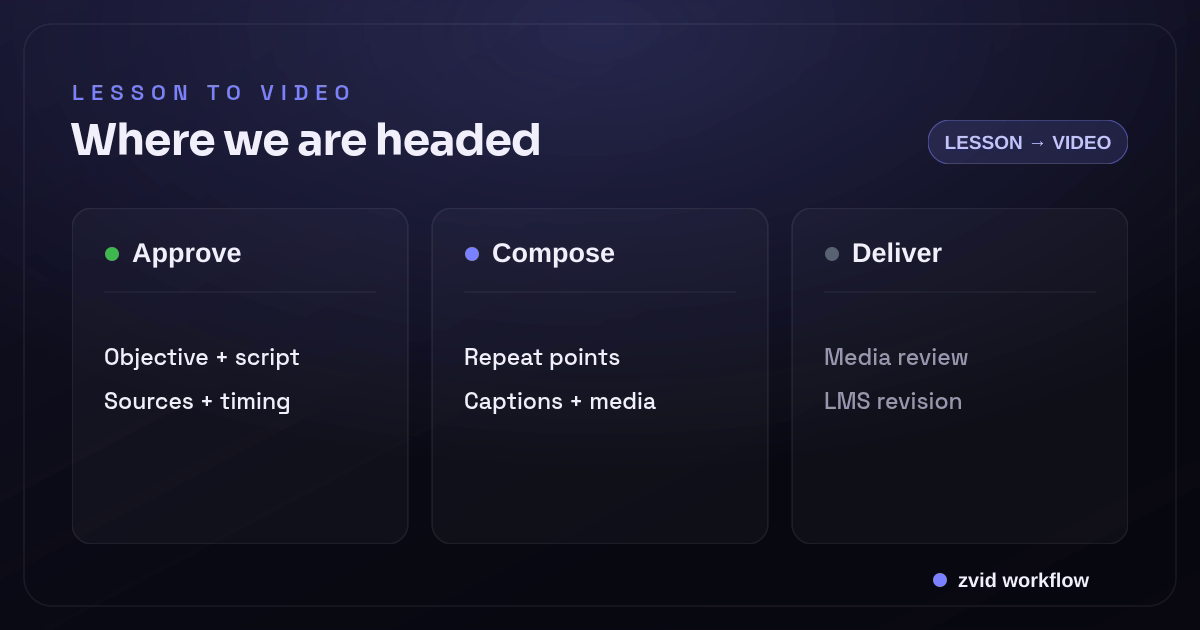
Approve, Compose, and Deliver form one reviewable Zvid workflow.
Choose lessons with a repeatable teaching shape
A reusable template fits lessons that share a stable grammar, such as:
- One concept explained through three to five points
- A software feature demonstrated in a short sequence
- A policy update with scope, rule, example, and recap
- A vocabulary card with definition, context, and check
- A weekly data summary with a fixed interpretation pattern
- Onboarding modules with consistent objectives and actions
Do not force radically different instructional formats into one template. A screen-recorded software lab, a presenter-led coaching session, and a compliance scenario may need separate creative systems even if they belong to the same course.
Define the template family first: micro-lesson, concept explainer, product walkthrough, assessment feedback, or recap. Then define its data contract.
Make the lesson record authoritative
This illustrative lesson teaches how to read a conversion funnel:
{
  "lessonId": "analytics-funnel-03",
  "revision": 4,
  "courseId": "growth-analytics-foundations",
  "title": "Find the largest funnel drop-off",
  "objective": "Identify the stage that loses the largest share of users.",
  "estimatedLevel": "beginner",
  "narrationUrl": "https://cdn.example.com/courses/funnel-03-r4.mp3",
  "captionsUrl": "https://cdn.example.com/courses/funnel-03-r4.vtt",
  "points": [
    {
      "heading": "Compare rates, not raw counts",
      "explanation": "Each stage starts with a different number of users.",
      "mediaUrl": "https://cdn.example.com/courses/funnel-rates.webp",
      "enter": 5.4,
      "exit": 11.8
    },
    {
      "heading": "Calculate stage-to-stage loss",
      "explanation": "Subtract the next-stage rate from the current stage.",
      "mediaUrl": "https://cdn.example.com/courses/funnel-loss.webp",
      "enter": 11.8,
      "exit": 19.6
    },
    {
      "heading": "Investigate the biggest change",
      "explanation": "Start with the largest loss, then segment the audience.",
      "mediaUrl": "https://cdn.example.com/courses/funnel-segment.webp",
      "enter": 19.6,
      "exit": 27.2
    }
  ],
  "showExample": true,
  "exampleTitle": "Example: signup to activation",
  "exampleMediaUrl": "https://cdn.example.com/courses/funnel-example.webp",
  "recap": "Compare stage rates, calculate each loss, and investigate the largest change.",
  "sourceRefs": ["course-notes@9", "analytics-handbook@2026-04"],
  "approvalId": "EDU-APP-2204"
}
The record contains approved display copy and timing. It also includes content revision, source references, and approval identity. Those fields may not all appear on screen, but they belong with the render record for traceability.
Your application should validate:
- Required identity and version fields
- Title, objective, point, and recap length limits tested against the layout
- Point count appropriate for the template
- Monotonic, non-overlapping timing where the workflow supplies timing
- Public and approved media URLs
- Narration and caption files from the same lesson revision
- Source and approval records
Do not send an unreviewed language-model response straight to a course template.
Design around an instructional sequence
A micro-lesson might use:
- Orientation — title and objective
- Teaching sequence — one scene per point
- Worked example — optional, visually distinct
- Recap — restate the procedure or decision
- Next action — return to course, try a practice item, or continue
This sequence is more useful than a generic intro-logo-outro structure because every scene supports a learning job.
Create the project in the Zvid Editor. Use the canvas for visual hierarchy and the timeline for narration, scene timing, media, and captions. Because the editor and API use the same project JSON, engineering can render the approved design without rebuilding it elsewhere.
Define the Zvid variables
{
  "variables": {
    "title": "Find the largest funnel drop-off",
    "objective": "Identify the stage that loses the largest share of users.",
    "points": [],
    "showExample": false,
    "exampleTitle": "",
    "exampleMediaUrl": "",
    "recap": "Compare stage rates, calculate each loss, and investigate the largest change.",
    "narrationUrl": "https://cdn.example.com/lesson.mp3",
    "captionsUrl": "https://cdn.example.com/lesson.vtt",
    "accent": "#5EEAD4"
  }
}
Expose lesson content and a small governed brand surface. Keep typography, transitions, scene framing, recurring labels, logo placement, and fixed course navigation inside the template.
The editor Variables panel supports string, number, boolean, array, and object defaults. It also shows placeholder use and previews resolved values. That makes the variable contract visible to both the course designer and engineer.
Repeat teaching points with iterate
{
  "id": "teaching-point",
  "iterate": "points",
  "iterateAs": "point",
  "duration": 6.4,
  "transition": "slideleft",
  "visuals": [
    {
      "type": "IMAGE",
      "src": "{{point.mediaUrl}}",
      "x": 620,
      "y": 120,
      "width": 1180,
      "height": 840,
      "resize": "contain"
    },
    {
      "type": "TEXT",
      "text": "{{point.heading}}",
      "x": 100,
      "y": 180,
      "width": 500
    },
    {
      "type": "TEXT",
      "text": "{{point.explanation}}",
      "x": 100,
      "y": 430,
      "width": 480
    }
  ]
}
Zvid expands one scene per array item. {{point}} refers to the current item, and {{index}} is available if the design uses a progress marker.
Iteration works best when each point has the same instructional role. If one item is a demonstration that needs a screen recording and callouts, model it as a separate optional scene rather than stretching a single layout beyond its purpose.
The example uses a fixed scene duration for clarity. When narration timing varies per point, either create scenes from precomputed durations in trusted project JSON or maintain template variants for known timing classes. Confirm numeric placeholder behavior through template preview before relying on per-item duration fields.
Keep one timing source of truth
The narration, point scenes, captions, and visual emphasis must agree. Choose one timing authority:
- A reviewed transcript with segment and word timestamps
- A recorded narration plus aligned transcript
- A planned lesson timeline later used to synthesize or record audio
Do not estimate scene boundaries independently in several systems. Preserve timing with the lesson revision.
Zvid audio items can specify source and timeline ranges. A narration track can cover the full project:
{
  "audios": [
    {
      "src": "{{narrationUrl}}",
      "enter": 0,
      "exit": 34.5,
      "volume": 1
    }
  ]
}
Background music, if used, should remain clearly below speech and comply with course and distribution rights. Check loudness by listening, not by assuming a numeric volume works across every source.
For a deeper timing implementation, use the official Zvid timeline and scenes guide.
Add captions as an accessibility and comprehension layer
Zvid supports subtitle sources and word-timed caption data. Use VTT or SRT when the transcription workflow produces a reviewed timed file. Use word-level data when trustworthy alignment is available and the selected caption animation benefits from it.
Caption QA should cover:
- Exact match with final narration
- Correct technical terms, names, and numbers
- Reading speed and phrase boundaries
- Contrast over every background
- Placement clear of charts, code, and native player controls
- No important meaning conveyed by color or audio alone
Captions do not replace a transcript or other accessibility requirements in the learning environment. Store the text transcript separately so the LMS or course page can expose it appropriately.
Use media that teaches
Every visual should support the narration:
- Diagram for a relationship
- Screenshot or screen recording for a procedure
- Highlighted example for a decision
- Short B-roll only when context improves understanding
- Branded title card for orientation, not filler
Do not fill a lesson with random stock clips to keep the frame moving. A static, well-labeled chart can teach more than an unrelated animated background.
Use stable uploaded assets for controlled course media. Zvid's editor can also add public URLs and search stock providers, but rights, accuracy, and long-term availability remain workflow responsibilities.
Handle optional examples with condition
{
  "id": "worked-example",
  "condition": "{{showExample}}",
  "duration": 5,
  "visuals": [
    {"type": "TEXT", "text": "{{exampleTitle}}", "x": 100, "y": 130, "width": 1720},
    {"type": "IMAGE", "src": "{{exampleMediaUrl}}", "position": "center-center", "resize": "contain"}
  ]
}
The application sends a boolean; Zvid prunes the scene when false. It does not infer whether an example exists from an empty URL. This explicit state prevents blank media frames.
Conditions are also useful for a quiz prompt, presenter credit, content warning, localized disclosure, or course-specific next action. Keep business rules in the application and pass the final boolean.
Preview boundary lessons before rendering a course
Create fixture lessons for:
- Minimum and maximum point count
- Longest allowed title, objective, point, and recap
- Example on and off
- Light and dark teaching media
- Screenshots with small UI text
- Different narration lengths
- Captions with technical terms and punctuation
- Languages and writing directions the template officially supports
The editor's preview toggle and the template preview endpoint resolve variables before a final render. Review the full timeline—not only the opening frame. A lesson can pass the title card and fail when point four overflows.
After preview, render a golden set and inspect opening, middle, example branch, recap, final frame, and continuous playback with audio.
Render one lesson or a course batch
One stored-template request:
{
  "template": "tpl_xxxxxxxxxxxxxxxxxxxx",
  "variables": {
    "title": "Find the largest funnel drop-off",
    "objective": "Identify the stage that loses the largest share of users.",
    "points": [
      {"heading": "Compare rates, not raw counts", "explanation": "Each stage starts with a different number of users.", "mediaUrl": "https://cdn.example.com/funnel-rates.webp"}
    ],
    "showExample": true,
    "exampleTitle": "Example: signup to activation",
    "exampleMediaUrl": "https://cdn.example.com/funnel-example.webp",
    "recap": "Compare rates, calculate each loss, and investigate the largest change.",
    "narrationUrl": "https://cdn.example.com/funnel-03-r4.mp3",
    "captionsUrl": "https://cdn.example.com/funnel-03-r4.vtt"
  },
  "overrides": {"name": "analytics-funnel-03-r4"},
  "webhookUrl": "https://learning.example.com/hooks/zvid"
}
For a module or catalog, use the bulk endpoint. Validate every lesson first, preserve item index to lesson revision, and store itemErrors. Every accepted item becomes an individual job and emits its own completion event.
Do not mark a module rendered merely because the bulk request was accepted. Compute module readiness from the local lesson rows.
Deliver to the LMS as a separate workflow
Rendering and course publication are different states:
content_approved -> render_requested -> rendered -> media_approved -> packaged -> published
The Zvid output can be copied to durable course storage if required by retention policy. Your integration then attaches it to the correct lesson, transcript, captions, thumbnail, accessibility metadata, and version.
If the source lesson changes, create a new render tied to the new revision. Preserve or retire the old asset according to the LMS and audit policy.
Course-video QA checklist
Instructional review
- Objective matches the actual lesson.
- Points are accurate, ordered, and scoped.
- Example supports the concept and is not misleading.
- Recap reflects what was taught.
- Sources and approvals are current.
Media review
- On-screen text is readable at target player size.
- Screenshots and diagrams remain legible after encoding.
- Visuals match narration at the right moment.
- Captions match speech and important terms.
- Audio is clear and consistent.
- No placeholders, empty scenes, or abrupt timing gaps appear.
- Course and brand identity are correct.
Operations review
- Lesson, revision, template, job, and output IDs are linked.
- Failed jobs and invalid bulk items have an owner.
- Completion processing is idempotent.
- Published assets passed the explicit approval gate.
Automated course videos are not YouTube automation
The keyword automated course videos has two competing meanings. In an education product, it describes online course or training videos generated from approved lesson records. In creator content, it may refer to a YouTube automation course about starting a channel, choosing a niche, outsourcing production, or operating a faceless YouTube channel. Those are different systems with different success criteria.
For an LMS or training team, the authoritative inputs are the objective, script, sources, examples, voiceover, captions, and assessment. The output should help a learner understand the lesson. A YouTube automation workflow instead has to address channel strategy, original content, thumbnails, description, upload cadence, audience retention, and platform policy. Zvid renders approved media; it is not a promise about subscribers, brand deals, or a profitable channel.
AI can assist either workflow without becoming the authority. An AI tool can summarize a lesson, propose a script, or adapt a caption, while curriculum review protects accuracy. If the same course team also publishes YouTube videos, keep the channel record separate from the render record. The template should receive the approved lesson and destination profile; the publishing system should own upload metadata and channel state.
This distinction also prevents the page from becoming a generic “YouTube automation full course” or “full course 2026” guide. The practical task here is to automate repeatable educational video production while preserving instructional design, accessibility, and review.
Choose the workflow by the viewer promise
If the promise is “master AI and start a YouTube automation channel,” the curriculum must cover channel research, YouTube content, original-content rules, monetization, subscriber expectations, viewing behavior, thumbnails, upload strategy, and creator productivity. It may use case studies, real-world examples, and a free-course funnel. That is a creator-education product, not a rendering tutorial.
If the promise is “turn approved lessons into accessible videos,” the system needs chapter data, scripts, sources, voiceovers, caption timing, edits, and learner review. A faceless channel and a training library can both use AI, but success is measured differently. Keep those promises separate so a course team can automate production without inheriting misleading make-money claims or generic YouTube advice.
Keep creator-course claims responsible
A creator course may discuss affiliate income, profitable niches, ranking, tags, audience engagement, or how to make money, but it should never guarantee a viral channel. If AI or ChatGPT helps tailor course content, the instructor still owns content quality, original-source review, and platform-policy accuracy. “YouTube automation videos using AI” is a subject to teach critically, not a shortcut around those obligations.
For any course type, provide a step-by-step objective, high-quality examples, a clear edit and review process, and an honest completion artifact such as a quiz or certificate. Video creation can save time, but the lesson must still help the learner. Zvid can render each clip and module consistently; it does not decide whether the educational promise is ethical or complete.
Real Zvid example: a micro-lesson video
The video below is rendered by Zvid from the edu-micro-lesson example. It walks a single lesson through a repeatable production sequence — freeze the objective, script, and sources; map the lesson points into template variables; then review captions, media rights, timing, and the final LMS revision — with narration and captions, the structure you would reuse for every lesson.
A real Zvid render adapted from the published edu-micro-lesson example for this workflow.
The lesson map above is the only inline still because the working video is the meaningful proof. Both assets are rendered through Zvid.
Frequently asked questions
Can Zvid generate a full course from lesson JSON?
Zvid can render many approved lessons from one or more templates. Your course system still owns instructional design, source accuracy, approvals, lesson ordering, assessments, packaging, and publication.
How do lessons with different point counts work?
Bind a teaching-point scene to a bounded array with iterate. Zvid generates one scene per item, while the application enforces the creative count limit.
Should captions come from the script or the final audio?
Use timing aligned to the final narration. If the recorded or synthesized audio differs from the draft script, regenerate and review the caption timing.
Can a render completion webhook publish directly to the LMS?
It can trigger the next workflow stage, but completion should not bypass media, instructional, and accessibility approval. Keep rendering and publication as separate states.
Scale production without automating judgment away
The premium course-video workflow is a partnership between structured content and a governed creative. The lesson record carries approved meaning and timing. The Zvid template carries layout, motion, repeated scenes, optional branches, narration, and captions. Bulk jobs and webhooks carry it through production.
Humans still decide whether the lesson is correct and useful. That is the boundary that lets automation increase consistency without lowering educational quality.