Use Cases
AI Real Estate Listing Video Automation with Zvid
Turn approved listing photos and facts into property tours with Zvid variables, room iteration, optional open-house scenes, bulk renders, and webhooks.
By Mina RamzyPublished Updated
AI Real Estate Listing Video Automation with Zvid
Real estate listing video automation should turn approved property facts and selected media into a coherent tour—not animate every image in a feed. A reliable workflow preserves listing identity, orders rooms intentionally, hides absent events or price fields cleanly, applies the correct agent and brokerage brand, and requires visual approval before distribution.
Zvid can make the creative reusable. Build the tour in the visual editor, expose listing and agent variables, repeat selected room scenes with iterate, control optional open-house or CTA sections with condition, save the project as a template, and create one or many property videos through the API.
The property and brokerage details in this guide are illustrative. Production copy, disclosures, media rights, licensing details, and advertising rules must be verified for the listing and jurisdiction.
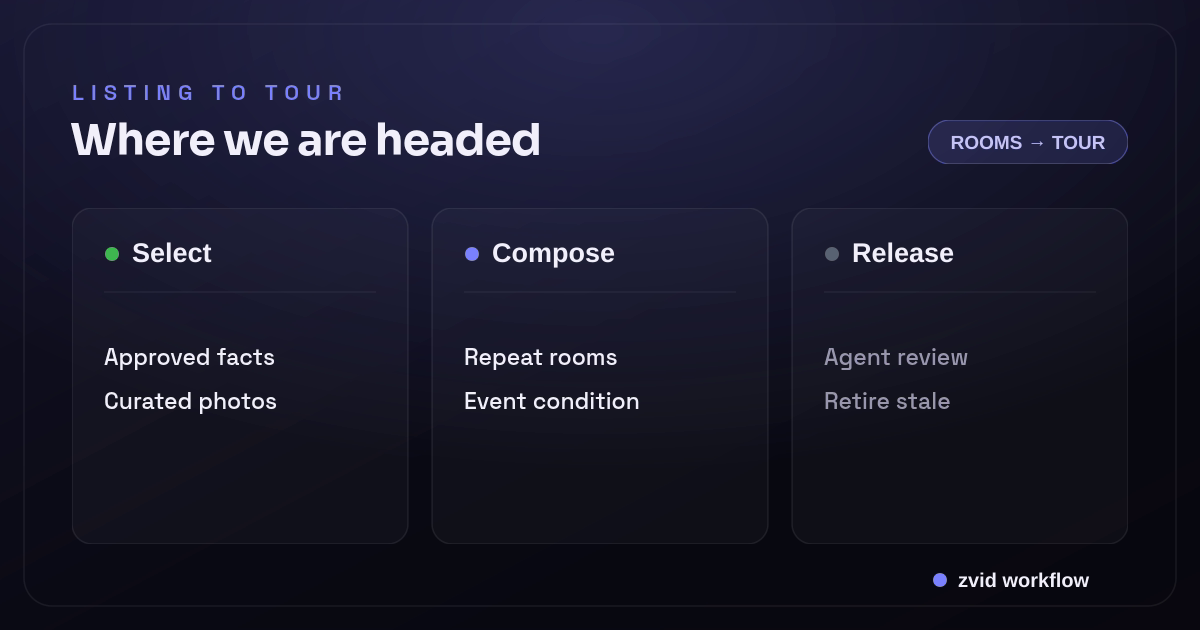
Select, Compose, and Release form one reviewable Zvid workflow.
Use a video-ready listing contract
A listing database often contains hundreds of fields and dozens of photos. The video system should receive a smaller, approved projection:
{
  "listingId": "LST-20481",
  "revision": 17,
  "status": "active",
  "addressDisplay": "18 Cedar Lane, Northbank",
  "priceDisplay": "$865,000",
  "bedsDisplay": "3 beds",
  "bathsDisplay": "2.5 baths",
  "areaDisplay": "2,140 sq ft",
  "headline": "Light-filled home with a private garden",
  "heroPhotoUrl": "https://cdn.example.com/listings/20481/exterior.webp",
  "rooms": [
    {
      "label": "Open living space",
      "detail": "South-facing windows and oak floors",
      "photoUrl": "https://cdn.example.com/listings/20481/living.webp"
    },
    {
      "label": "Updated kitchen",
      "detail": "Stone worktops and garden access",
      "photoUrl": "https://cdn.example.com/listings/20481/kitchen.webp"
    },
    {
      "label": "Private garden",
      "detail": "Patio and mature planting",
      "photoUrl": "https://cdn.example.com/listings/20481/garden.webp"
    }
  ],
  "showOpenHouse": true,
  "openHouseDisplay": "Saturday, 11:00–13:00",
  "agent": {
    "name": "Maya Chen",
    "title": "Listing agent",
    "phoneDisplay": "+1 555 010 4402",
    "portraitUrl": "https://cdn.example.com/agents/maya-chen.webp"
  },
  "brand": {
    "logoUrl": "https://cdn.example.com/brands/northbank-white.png",
    "accent": "#D7B36A"
  },
  "approvalId": "APR-8821"
}
Format facts before the render layer. The template should not decide unit systems, currency, address privacy, event time zones, or whether “bath” means full or partial. The listing service owns those decisions and sends approved display strings.
Include revision and approvalId. They let you prove which listing version and review decision produced the asset.
Select media as an editor, not as a loop
An MLS or property platform may contain exterior angles, every room, floor plans, detail shots, duplicate uploads, and agent collateral. A useful short tour usually needs fewer.
Select a sequence with a narrative job:
- Hero: best exterior or defining interior
- Orientation: main living space or layout anchor
- Value: kitchen, primary bedroom, workspace, or another decision-driving room
- Differentiator: garden, view, terrace, amenity, or architectural detail
- Action: open house, agent contact, or listing CTA
Use explicit ranking or human curation. Computer vision can assist with duplicate detection or room labels, but it should not silently publish a misleading order or choose a poor crop. Preserve the selected list with the render record.
Require media to be:
- Authorized for the intended marketing use
- Free of unintended personal information
- Correctly oriented
- Large enough for the output
- Reachable from the render service
- Reviewed for watermarks, signage, reflections, and visible occupants
The system should reject or route questionable media for review rather than fill the tour with an unrelated stock room.
Design the tour in the Zvid Editor
Use the Zvid Editor to build the canvas, timeline, scene transitions, typography, and media behavior. The same JSON can be exported to the API, and API payloads can be opened in the editor.
A compact tour can use:
- Hero scene: 3.5 seconds
- Facts scene: 2.5 seconds
- One room scene per selected item: 2.8 seconds each
- Optional open-house scene: 2 seconds
- Agent and CTA scene: 2.5 seconds
Those timings are creative choices, not universal rules. Review them with the music, motion, and reading load. A listing with five rooms naturally produces a longer video than one with two.
Declare template variables explicitly
{
  "variables": {
    "addressDisplay": "18 Cedar Lane, Northbank",
    "priceDisplay": "$865,000",
    "bedsDisplay": "3 beds",
    "bathsDisplay": "2.5 baths",
    "areaDisplay": "2,140 sq ft",
    "headline": "Light-filled home with a private garden",
    "heroPhotoUrl": "https://cdn.example.com/exterior.webp",
    "rooms": [],
    "showOpenHouse": false,
    "openHouseDisplay": "",
    "agentName": "Maya Chen",
    "agentTitle": "Listing agent",
    "agentPhone": "+1 555 010 4402",
    "agentPortraitUrl": "https://cdn.example.com/agent.webp",
    "logoUrl": "https://cdn.example.com/logo.png",
    "accent": "#D7B36A"
  }
}
Variables represent the controlled change surface. Keep fixed legal copy, layout grids, font families, animation style, and logo clear-space rules in the approved template unless the brand system intentionally exposes them.
Build the hero and facts scenes for fast comprehension
The opening should establish the property and location immediately:
{
  "id": "hero",
  "duration": 3.5,
  "visuals": [
    {
      "type": "IMAGE",
      "src": "{{heroPhotoUrl}}",
      "width": 1080,
      "height": 1920,
      "resize": "cover",
      "zoom": 1.06
    },
    {"type": "IMAGE", "src": "{{logoUrl}}", "x": 70, "y": 90, "width": 230, "height": 90, "resize": "contain"},
    {"type": "TEXT", "text": "{{addressDisplay}}", "x": 70, "y": 1280, "width": 920},
    {"type": "TEXT", "text": "{{headline}}", "x": 70, "y": 1450, "width": 880}
  ]
}
The facts scene can place already formatted values in a stable grid. Do not concatenate raw fields into a sentence inside the template if language and punctuation vary by market. Provide display strings or a localized block from the application.
Check the hero crop on portrait, landscape, and unusually wide listing photos. If cover cuts off the property, use a designed contained layout or require a dedicated vertical crop.
Generate selected room scenes with iterate
{
  "id": "room",
  "iterate": "rooms",
  "iterateAs": "room",
  "duration": 2.8,
  "transition": "crossfade",
  "visuals": [
    {
      "type": "IMAGE",
      "src": "{{room.photoUrl}}",
      "width": 1080,
      "height": 1920,
      "resize": "cover",
      "zoom": 1.05
    },
    {"type": "TEXT", "text": "{{room.label}}", "x": 70, "y": 1360, "width": 900},
    {"type": "TEXT", "text": "{{room.detail}}", "x": 70, "y": 1510, "width": 850}
  ]
}
Zvid repeats the scene once for each object in rooms. iterateAs makes placeholders clear, and {{index}} is available if the design needs a position marker.
Set a small application limit, such as two to six room scenes, based on the approved format. Zvid's platform limits are broader and plan-dependent, but a creative limit protects pacing and attention.
Do not use iteration to include every listing image. The selected array is the editorial decision.
Hide open-house content when it is not valid
{
  "id": "open-house",
  "condition": "{{showOpenHouse}}",
  "duration": 2,
  "visuals": [
    {"type": "TEXT", "text": "Open house", "position": "center-center"},
    {"type": "TEXT", "text": "{{openHouseDisplay}}", "position": "center-center"}
  ]
}
The application calculates showOpenHouse after checking event status and display policy. Zvid's condition accepts a boolean; it does not compare dates. If the event is canceled or the render is stale, do not rely on a previously rendered video to update itself. Mark the asset obsolete and create a new version.
The same pattern works for price, agent portrait, virtual-tour CTA, or required disclosures: use explicit flags, not empty strings and invisible spacing.
Separate agent data from brokerage design
Agent name, portrait, title, and approved contact line are request data. Brokerage logo, typography, background treatment, transitions, and fixed disclosures belong to the template or a controlled brand profile.
For multi-brand platforms, choose the approved template ID based on tenant authorization. Do not let a caller submit an arbitrary logo URL and accent color for a brand they do not own.
Preview the longest agent name and contact format. Portraits need a fixed crop policy or an approved focal-point transformation upstream.
Create an approval-aware rendering workflow
An end-to-end state model can be:
listing_draft
  -> media_selected
  -> facts_approved
  -> render_requested
  -> rendered
  -> video_approved
  -> distributed
  -> obsolete
Store on every render row:
- Listing ID and revision
- Approval ID
- Template ID and revision
- Ordered room/media list
- Zvid job ID
- Output URL and checksum
- Reviewer and decision timestamp
- Distribution destinations
- Obsolete reason, if listing facts or status change
A render completion event means the file exists. It does not mean the listing is accurate or approved for advertising.
Render a listing and track completion
{
  "template": "tpl_xxxxxxxxxxxxxxxxxxxx",
  "variables": {
    "addressDisplay": "18 Cedar Lane, Northbank",
    "priceDisplay": "$865,000",
    "rooms": [
      {"label": "Open living space", "detail": "South-facing windows and oak floors", "photoUrl": "https://cdn.example.com/living.webp"},
      {"label": "Updated kitchen", "detail": "Stone worktops and garden access", "photoUrl": "https://cdn.example.com/kitchen.webp"}
    ],
    "showOpenHouse": true,
    "openHouseDisplay": "Saturday, 11:00–13:00",
    "agentName": "Maya Chen"
  },
  "overrides": {"name": "LST-20481-r17-tour"},
  "webhookUrl": "https://listings.example.com/hooks/zvid"
}
Persist the returned job ID before waiting for completion. Use a registered Zvid webhook for signed account-level events, or a per-request callback for job-specific routing. Make the receiver idempotent and reconcile old non-terminal jobs with the job endpoint.
Render many listings with item-level recovery
The bulk endpoint accepts one template and an array of listing variable sets. Each accepted item becomes a separate render job. Invalid rows are reported as itemErrors by original index while valid rows continue.
Before submission:
- Freeze the listing revision and selected media list.
- Exclude inactive, withdrawn, or unapproved listings.
- Validate display strings and array limits.
- Confirm media reachability and rights status.
- Build an index-to-listing map.
After submission, store bulk ID and job IDs, repair only failed rows, and never infer that the complete batch succeeded from the bulk request's HTTP status alone.
Property-tour visual QA
Automated checks should verify fields, allowed hosts, array counts, listing status, approval IDs, template preview, and accepted render jobs. Human or assisted visual review should verify:
- Hero image matches the listing.
- Address, price, beds, baths, area, and event time match the approved revision.
- Room labels match the images.
- Photo order tells a coherent tour.
- Crops do not hide defining features or create misleading emphasis.
- No occupants, license plates, reflections, documents, or private details appear unintentionally.
- Agent and brokerage branding are correct.
- Required disclosures are readable for long enough.
- Transitions and motion remain comfortable.
- Final contact action is accurate.
Inspect every scene branch for the first release of a template. For stable production, sample across photography styles, property types, brands, and listing-data extremes, while routing anomalies for review.
Handle listing changes and stale assets
Property facts change. A price may update, an open house may be canceled, media may be replaced, or a listing may leave the market.
Use the listing revision as part of the output identity. When a material field changes:
- Mark the prior video obsolete in your system.
- Stop future distribution of the stale asset.
- Render from the new approved revision.
- Preserve the old output and metadata according to your audit and retention policy.
Do not overwrite history so completely that you cannot explain which facts appeared in a distributed video.
AI real-estate video maker vs listing automation
An AI real-estate video maker may help draft captions, rank photos, or suggest a social hook. Listing automation solves a stricter problem: create listing videos from approved facts and media while preserving address, price, room details, agent identity, and compliance language. The two can share a pipeline, but the AI output should remain a proposal until it passes review.
Real estate agents also need more than one asset. A property page may use a horizontal real estate video, while a social Reel needs a shorter vertical cut and a listing card needs a still image. One source record can drive all three if the template family separates content from destination-specific design.
The best real estate video workflow therefore combines creative judgment with operational controls. Curate the photo order, validate property marketing claims, generate captions from the final narration, and keep an approval state before release. An automation tool can create videos and track jobs quickly; it should not turn an expired open-house time or unverified AI video claim into published content.
Build for real-estate professionals and destinations
Real-estate professionals often need listings with video in several places: the property site, agent page, social feed, email, and ad platform. Define the aspect ratio, video length, caption style, and CTA per destination. A real estate video maker that creates one generic export is not the same as a governed distribution workflow.
AI automation can help rank images or draft video content, but the listing agent remains responsible for real estate marketing accuracy. Give the video editor or reviewer a resolved preview, then render approved variants. This approach keeps AI tools and video marketing useful without allowing an “AI real estate video” label to obscure stale facts or unlicensed photos.
Real Zvid example: a structured property tour
The video below is rendered by Zvid from the realty-property-tour example, adapted to an illustrative listing. It uses real property-tour scenes — an exterior hero, a room-by-room walkthrough with address and price overlays, agent branding, and a booking CTA — the same reusable structure you would drive from one listing's data.
A real Zvid render adapted from the published realty-property-tour example for this workflow.
The inline listing map is also rendered in Zvid and shows where facts, selected rooms, optional event data, agent identity, and approvals enter the template.
Frequently asked questions
Can Zvid create one scene for every room photo?
Yes. A room scene can use iterate to repeat for each item in a bounded array. The application should pass an intentionally selected and ordered list rather than every uploaded image.
How should canceled open houses be handled?
Set the explicit event condition to false for new renders, mark existing event-specific assets obsolete, stop their distribution, and render the updated listing revision.
Can one template support multiple agents or brands?
Agent fields can be variables. Materially different brokerage designs are usually safer as separate approved templates or controlled brand profiles selected by authorized application logic.
Does render completion mean the listing video can be published?
No. Completion means the media file was generated. Listing facts, imagery, disclosures, branding, and distribution still need the workflow's approval gate.
Automate the repeatable work and preserve judgment
The repeatable parts of property video—layout, timing, variable substitution, room repetition, optional scenes, rendering, and job delivery—fit a Zvid template well. Media selection, factual approval, compliance, and final visual judgment remain accountable workflow decisions.
That balance produces more than a slideshow factory. It creates a versioned property-tour system that can scale across listings while keeping each output traceable to the correct facts, media, brand, and approval.