Developer Tutorials
Generate Video from JSON: Structured API vs AI Prompting
Send a valid Zvid project, track the render job, and move from a first JSON video to reusable templates and webhooks.
By Mina RamzyPublished Updated
Generate Video from JSON: Structured API vs AI Prompting
To generate a video from JSON with Zvid, build a valid project object, send it as payload to POST https://api.zvid.io/api/render/api-key, save the returned job ID, and either poll GET /api/jobs/{id} or receive a webhook when rendering finishes. The completed job returns a CDN URL for the video.
The most common beginner mistake is not malformed JSON. It is mixing up three different objects: the project you want rendered, the request that submits it, and the job record returned by the API. Keep those boundaries clear and the first integration is straightforward.
The JSON structure reference documents the project fields, while the Zvid introduction explains how the editor and API share the same project model.
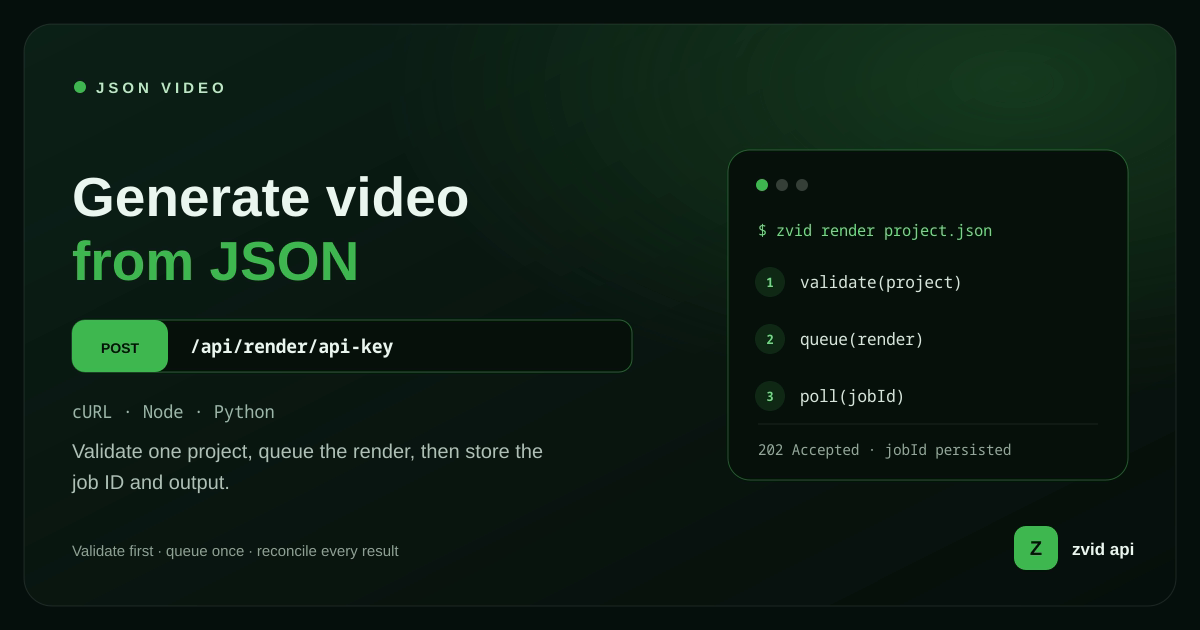
Validate one project, queue the render, then store the job ID and output.
Understand the three JSON objects
| Object | What it represents | Typical top-level fields |
|---|---|---|
| Project | The video composition | name, resolution, scenes, visuals, audios, subtitle |
| Render request | How this render should be submitted | payload or template, variables, overrides, webhookUrl |
| Job result | The asynchronous render state | job ID, status, progress, result URL or failure reason |
The project is portable creative data. You can author it in code or import it into the browser-based Zvid Editor. The request envelope is API-specific. The job object is operational state and should be stored separately from the creative source.
Build a small but complete Zvid project
Start with scenes when the video has sequential messages. Each scene has a local timeline, so the hook, explanation, and CTA cannot accidentally overlap.
{
  "name": "first-json-video",
  "resolution": "hd",
  "frameRate": 30,
  "outputFormat": "mp4",
  "backgroundColor": "#0B1020",
  "scenes": [
    {
      "id": "hook",
      "duration": 2.8,
      "backgroundColor": "#111827",
      "transition": "fade",
      "transitionId": "value",
      "transitionDuration": 0.5,
      "visuals": [
        {
          "type": "TEXT",
          "html": "<p style='font-size:84px;font-weight:800;margin:0'>JSON in.</p><p style='font-size:40px;color:#C4B5FD;margin:16px 0 0'>A finished video out.</p>",
          "position": "center-center",
          "width": 1000,
          "height": 260,
          "style": {
            "color": "#FFFFFF",
            "fontFamily": "Inter",
            "textAlign": "center",
            "display": "flex",
            "flexDirection": "column",
            "alignItems": "center",
            "justifyContent": "center"
          }
        }
      ]
    },
    {
      "id": "value",
      "duration": 3.2,
      "backgroundColor": "#1E1B4B",
      "transition": "fade",
      "transitionId": "cta",
      "transitionDuration": 0.5,
      "visuals": [
        {
          "type": "TEXT",
          "html": "<p style='font-size:66px;font-weight:800;margin:0'>Scenes keep timing clear</p><p style='font-size:34px;color:#DDD6FE;margin:18px 0 0'>Each message gets its own local timeline.</p>",
          "position": "center-center",
          "width": 1040,
          "height": 260,
          "style": {
            "color": "#FFFFFF",
            "fontFamily": "Inter",
            "textAlign": "center",
            "display": "flex",
            "flexDirection": "column",
            "alignItems": "center",
            "justifyContent": "center"
          }
        }
      ]
    },
    {
      "id": "cta",
      "duration": 2.8,
      "backgroundColor": "#0F172A",
      "visuals": [
        {
          "type": "TEXT",
          "text": "Render with Zvid",
          "position": "center-center",
          "width": 760,
          "height": 120,
          "style": {
            "fontSize": "58px",
            "fontWeight": 800,
            "color": "#0F172A",
            "backgroundColor": "#C4B5FD",
            "borderRadius": "28px",
            "fontFamily": "Inter",
            "display": "flex",
            "alignItems": "center",
            "justifyContent": "center",
            "textAlign": "center"
          }
        }
      ]
    }
  ]
}
This project uses text only so the first request has no external media dependency. Production projects can add images, video clips, GIFs, SVG, audio, subtitles, filters, transitions, and Design Studio output.
Submit the render request
Wrap the project in a top-level payload object. Keep the API key server-side; do not expose it in browser code or a public repository.
curl -X POST https://api.zvid.io/api/render/api-key \
  -H "x-api-key: $ZVID_API_KEY" \
  -H "Content-Type: application/json" \
  -d '{
    "payload": {
      "name": "first-json-video",
      "resolution": "hd",
      "duration": 6,
      "visuals": [
        {
          "type": "TEXT",
          "text": "Hello from Zvid",
          "position": "center-center",
          "style": {
            "fontSize": "72px",
            "fontWeight": 800,
            "color": "#FFFFFF"
          }
        }
      ],
      "backgroundColor": "#111827"
    }
  }'
The API validates the request, checks the account's active limits and credits, and queues the render. Save the returned job identifier with your own request ID or database record. A render is asynchronous; an accepted request is not yet a finished video.
Track the job without blocking a request thread
For a first integration, polling is easy to understand:
curl https://api.zvid.io/api/jobs/JOB_ID \
  -H "x-api-key: $ZVID_API_KEY"
Poll with a delay and a timeout. Do not create a tight loop. Store terminal states so a worker restart does not lose completed or failed jobs.
For production, a webhook usually gives a cleaner boundary. Pass a one-off webhookUrl in the render request, or register an account-level endpoint for render.completed and render.failed. Your receiver should verify signed registered deliveries, deduplicate events, and update the stored job state idempotently. See the webhooks documentation.
Validate before spending a render credit
Zvid exposes a validation path for project and render-request payloads. Validation catches schema errors and layout warnings without creating a render. Use it in CI for versioned templates, in a preflight worker for generated JSON, and during debugging before you retry a failed request.
Validation and rendering solve different questions:
- Validation asks whether the resolved project is acceptable and highlights risky layout choices.
- Rendering proves that remote media can be fetched and the final composition behaves as intended.
- Visual review proves that the technically valid result is actually good.
Fix every reported error. Treat warnings such as ignored coordinates, off-canvas boxes, low contrast, or overlapping text as design defects rather than harmless noise.
Structured JSON rendering is not JSON prompting
“Generate video from JSON” can describe two very different workflows. In a generative AI workflow, a JSON prompt may organize instructions for an AI video generator. The model still decides much of the visual result. In structured JSON rendering, the JSON is the project: it specifies the canvas, timing, layers, media, text, animation, and output settings that the renderer should execute.
This tutorial uses the second model. It shows how to convert JSON to video programmatically, not how to ask an AI model to interpret a prose prompt. An upstream AI service can still draft copy, propose a shot list, or create an image-generation brief, but its output should be validated before it enters video production. That boundary is especially important for personalized videos, where names, prices, and claims must remain deterministic.
Treat a video editing API, an AI video generation API, and a JSON-to-video API as different tools. The first changes media, the second synthesizes content, and the third renders an explicit composition. A production system may combine all three, but each stage needs its own input contract, review policy, and failure handling.
Keep generative-model adapters replaceable
Current model APIs reinforce that boundary. Google documents Veo 3.1 as a text-to-video and image-to-video model driven by text prompts, while OpenAI has announced that the Sora API is scheduled for discontinuation on September 24, 2026. (Google Veo documentation, OpenAI discontinuation notice)
Do not let a provider-specific JSON prompting format become the application’s permanent video schema. Put Veo, Sora, or another AI model behind an adapter that returns your own reviewed asset record. The Zvid project can then reference that asset explicitly. This lets the application automate video creation and image generation experiments without rebuilding the deterministic render path whenever a model, version, or provider changes.
Watch a real request-to-result Zvid demo
The video below is adapted from the published API Explainer template. Its scene structure shows the real integration sequence: request, accepted response, asynchronous processing, and completion delivery.
A real Zvid render adapted from the published saas-api-explainer example for this workflow.
Using an actual template output is more instructive than an abstract “API cloud” illustration: the visual proof and the code describe the same workflow.
Use the editor without giving up JSON ownership
The Zvid Editor is a visual interface for the same JSON the API renders. You can import the project above, move and resize elements on the canvas, adjust scene timing on the timeline, add media, and export the resulting payload.
That round trip is useful even on developer-led teams:
- A designer can refine typography and composition without editing a large JSON file.
- A developer can review the exported project, store it with application code, or save it as a template.
- Both sides can inspect the exact payload instead of relying on a separate proprietary timeline format.
The Rendering & Export guide explains the difference between saving a draft, saving a template, rendering, and exporting JSON.
Move to a template when the design repeats
A direct payload is ideal for a first render, a one-off composition, or projects generated entirely in code. Use a stored template when the layout remains stable and request-time data changes.
{
  "template": "tpl_xxxxxxxxxxxxxxxxxxxx",
  "variables": {
    "headline": "Quarterly product update",
    "accent": "#8B5CF6",
    "showBadge": true
  },
  "overrides": {
    "name": "product-update-q3"
  },
  "webhookUrl": "https://example.com/hooks/zvid"
}
The template owns the designed project and declares safe defaults. The request overrides only the values that should change. Conditions can show or hide optional scenes or elements, and iterations can repeat a scene for an array. Preview the template with representative variables before the final render.
If you need the broader decision model—including projects, stored templates, bulk renders, images, the editor, and delivery—continue with the JSON-to-Video API Guide. If your source is a product feed, use the product video API workflow.
Common first-render failures
Sending project fields beside payload
The API request needs the project inside payload, unless you are rendering a stored template. A syntactically valid body can still have the wrong envelope.
Using preset dimensions and expecting custom width or height
Resolution presets control the canvas. If you need explicit dimensions, use the current custom-resolution contract instead of assuming width and height override a non-custom preset.
Treating position and x/y as additive
Position presets determine placement and can override coordinates. Use custom positioning when you need explicit offsets.
Rendering unresolved placeholders as a bare project
Variables, conditions, and iterations need the template resolution path. Preview or render the template with a variables object.
Trusting a successful job without viewing the output
A playable file can still contain clipped copy, poor contrast, incorrect media cropping, or blank timing. Inspect representative frames and the full result before publishing.
A production-ready first integration
Keep the first service small:
- Validate input into your own application schema.
- Build or select a Zvid project/template request.
- Validate the resolved project.
- Submit with an application correlation ID stored beside the Zvid job ID.
- Update state through a webhook or bounded polling worker.
- Save the result URL and failure reason.
- Require review before downstream publication.
That is enough to support one dependable video workflow. Add bulk rendering only when you have a stable template and a real batch use case.
FAQs
Can I generate a Zvid video from JSON without the visual editor?
Yes. The API accepts project JSON directly. The editor is optional and useful when visual design or timeline adjustment is faster on a canvas.
Does an accepted render request return the finished video immediately?
No. Rendering is asynchronous. Store the job ID and obtain the terminal result through the job endpoint or a webhook.
When should I use a template instead of payload?
Use a template when the design repeats and request-time values change. Use a direct payload when the composition itself is generated or truly one-off.
Generate one small video, inspect the result, and save the design as a template only after the composition is worth repeating. That sequence keeps the integration understandable and the creative system intentional.