Tutorials
Automate Faceless YouTube Shorts with n8n and Zvid
Turn a channel brief into a narrated, captioned YouTube Short with n8n, OpenRouter, ElevenLabs and Zvid. Preview, render and review before scheduling.
 By Mina RamzyPublished Updated
A faceless Shorts channel still needs a script, a voice, suitable footage, readable captions and a finished video for every upload. Repeating those steps is where a daily publishing routine becomes hard to maintain.
This faceless YouTube Shorts workflow connects n8n, OpenRouter, ElevenLabs and Zvid. It writes a short script for your niche, generates narration with word timings, finds media in Zvid's stock library and renders a vertical MP4. You can download the result for review or enable its optional YouTube upload branch.
The walkthrough starts with one manual run. Scheduling comes after you have checked the writing, pronunciation, footage and output on your own channel.
See what the workflow creates
28.59 seconds · 1080 × 1920 · narration and music
Download the sample MP4 ↓
From a channel brief to a captioned Short
The example starts with the niche surprising space facts. The workflow produces spoken scenes, stock footage, highlighted captions and a channel outro.
The script and stock search can change between runs. Your next result will not necessarily repeat this topic, footage or duration.
Automatic stock matching still needs an editorial pass. In this sample, a fountain appears during a sentence about detecting gravitational waves. It is a visual association, not footage of a detector. Review the selected shots and adjust the scene queries or replace unsuitable media before publishing.
1. Get the workflow and prepare your accounts
Use the Zvid workflow page, workflow source on GitHub for this walkthrough.
Open the official Faceless YouTube Shorts template on n8n, then use the maintained JSON below for the written walkthrough.
Watch the complete walkthrough
See the full workflow
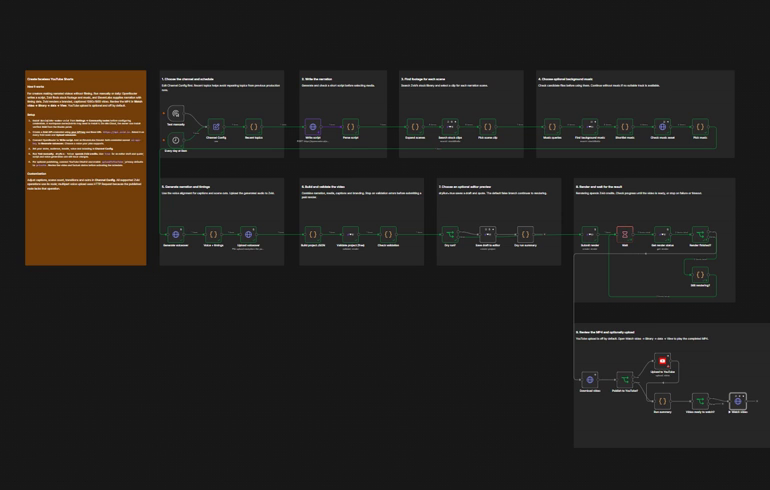
You need an n8n workspace that can install the Zvid community package, a Zvid API key and credits for rendering, an OpenRouter API key with access to the configured model, and an ElevenLabs API key with access to the selected voice and text-to-speech model. YouTube credentials are only needed if you enable automatic uploading. No separate stock-library account is required.
2. Install Zvid, import the workflow and connect credentials
In n8n, open Settings → Community nodes and install @zvid/n8n-nodes-zvid before configuring Zvid credentials. A workspace owner or administrator may need to install it. On n8n Cloud, an owner or administrator can also search for the verified Zvid node in the nodes panel and install it there. See the Zvid integration guide.
Create an empty workflow, open its menu, choose Import from File and select the downloaded JSON. Keep its schedule inactive during setup.
Connect Zvid
- Open app.zvid.io/api-keys, click Create API key, give it a name such as
Faceless Shorts, then copy the complete key before closing the dialog. - Open Validate project (free) in n8n and create a Zvid API credential. Paste the key and keep the base URL as
https://api.zvid.io. - Select that credential on the other Zvid nodes, including the stock searches, Save draft to editor, Submit render and Get render status.
- On Upload voiceover, select Predefined Credential Type → Zvid API and the same credential. This step uploads an audio file through HTTP because the community node does not expose multipart uploads. The supported stock, validation, project and render operations use native Zvid nodes.
Keep keys in n8n credentials, not in Channel Config. The API key guide explains key creation and management.
Connect OpenRouter and ElevenLabs
Create an OpenRouter key at OpenRouter's API keys page. In Write script, create an OpenRouter API credential and paste that key. The shipped model is openai/gpt-4.1-mini; confirm your account can use it before the first run. The n8n OpenRouter credential instructions show the key field.
In ElevenLabs, create an API key with Text to Speech access, following its authentication guide. Open Generate voiceover in n8n and create a Header Auth credential with Name xi-api-key and Value set to that key. Copy the ID of a voice available to your account into voiceId in Channel Config. A voice's display name alone is not enough.
The voice request uses ElevenLabs' text-to-speech with timestamps. Its character alignment is converted into word timings for the captions and scene cuts; there is no separate transcription call. Voice availability and service usage depend on your ElevenLabs account.
Leave Upload to YouTube unconfigured while uploadToYouTube is false.
3. Choose a small first run
Open Channel Config. Keep the example niche for an easy comparison, but change the channel handle before publishing anything.
| Setting | Shipped value | First-run action |
|---|---|---|
niche |
surprising space facts |
Keep it for the first test, or use one specific subject. |
audience |
curious people scrolling YouTube Shorts |
Describe who should understand the script. |
channelHandle |
@dailyspacefacts |
Replace with your own handle. |
sceneCount |
5 |
Keep five scenes while checking the flow. |
targetSeconds |
30 |
Treat this as a writing target, not a fixed video length. |
voiceId |
nPczCjzI2devNBz1zQrb |
Confirm access to this voice, or copy your chosen voice ID. |
dryRun |
false |
Change to true for the initial validation and draft. |
uploadToYouTube |
false |
Leave off until you have reviewed a finished video. |
For a script-only check, open Parse script and choose Execute step. n8n will run the required earlier steps, including Write script. Inspect the returned title, narration and scene queries before generating a voice. Verify factual claims yourself; the prompt's instruction to use established facts is not a fact-checking service.
A full execution can generate a different script. If you want an approval stop before every voice generation or upload, add that control to your workflow before scheduling it. The supplied workflow has no human approval gate.
4. Preview the design and check the estimate
With dryRun: true, choose Test manually and Execute workflow. After writing and narration, the workflow builds a Zvid project and validates it. Validation reports whether the payload is accepted, any warnings and creditsRequired.
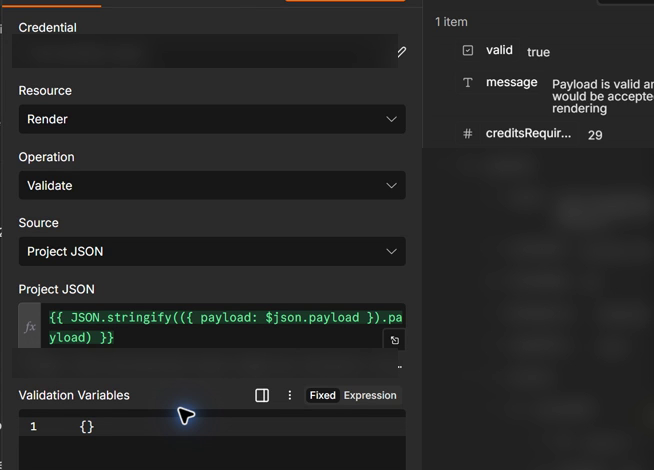
Open Dry run summary for the quote and, when the draft save succeeds, editorLink. Sign in to the same Zvid account, open that link and use the editor preview controls to check every scene, the voice, caption timing and outro. Validation and saving an editor draft do not consume render credits; creating a draft still needs an available project slot.
Check that the footage illustrates each sentence, the captions remain legible over bright scenes, and the narration is not obscured by music. The builder uses word timings for scene boundaries where possible and falls back to proportional timing when the word counts differ too much. Inspect the result instead of assuming every generated script will align perfectly.
Changing a saved editor draft does not update Channel Config or the next n8n project. Put reusable changes back into the workflow. Rendering an edited draft from the editor is a separate render action.
5. Render, watch and save the Short
Set dryRun: false, keep uploadToYouTube: false, and execute the workflow once. This is a new full run, so it calls the writing and voice services again before submitting the video.
Submit render returns a job ID. Wait and Get render status then check that job every 10 seconds, up to the configured 20-minute timeout. A successful submission only means the job was accepted; wait for completion and a video URL.
After completion, open ▶ Watch video, then Binary → data → View to play the MP4. Choose Download to retain a copy. The watch step fetches an existing video and does not submit another render.
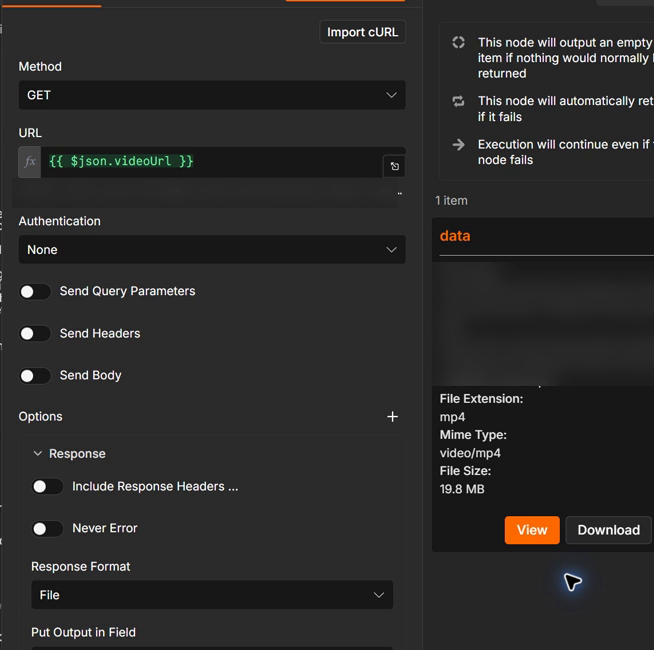
If the run times out or a download fails, keep the accepted job ID from Submit render and inspect that job before starting over. Repeating the whole workflow can create another script, voice and paid render. See the render lifecycle guide for completed, failed and still-processing jobs.
Download the finished file before its output URL expires. The lifetime depends on the account plan; a saved link is not a permanent archive.
6. Upload manually or enable the YouTube branch
For your first result, upload the downloaded MP4 in YouTube Studio. Review the title, description, music rights, footage and factual claims before publishing. This route lets you use the exact video you just inspected without generating it again.
To upload future results automatically, create a YouTube OAuth2 API credential in Upload to YouTube. On n8n Cloud, use the managed Sign in with Google connection when available and choose the Google account that owns the intended channel.
For self-hosted n8n with a custom Google connection:
- Create or select a project in Google Cloud and enable YouTube Data API v3.
- Configure the Google Auth Platform consent screen and audience. For an external app in testing, add your Google account as a test user.
- Create an OAuth client of type Web application. Add the exact OAuth Redirect URL shown in your n8n credential to its authorized redirect URIs.
- Copy the Client ID and Client secret into that n8n credential, choose Sign in with Google, approve the requested access and save it.
Use n8n's Google single-service OAuth instructions if you need help with the consent screens. n8n uses the OAuth connection to refresh access, but external apps left in testing can require reauthorization after seven days. Resolve that before relying on an unattended schedule.
Set uploadToYouTube: true for a future run. Keep youTubePrivacy: private initially. The upload happens automatically after rendering and before the final watch step; private controls visibility, not approval. A returned YouTube ID confirms upload, while YouTube may still be processing the video. Review it in Studio before changing visibility.
Customize, then schedule
Change brandAccent, captionSize, captionWordsPerCue and outroText in Channel Config to fit your channel. The default karaoke captions highlight the spoken word. For more control over prepared narration and caption data, read Generate faceless videos with JSON and Zvid. That guide starts from supplied media and timing; this workflow generates them through connected services.
The daily trigger is Every day at 9am. Check the workflow or instance timezone, choose your desired hour, then activate or publish the workflow in n8n to enable scheduled execution. Keep one run active at a time and monitor failures.
The prompt uses the last 40 remembered topics to discourage repetition. n8n workflow static data persists for production executions, not ordinary manual tests, and a prompt is not a guarantee against duplicate topics. Keep an editorial check on what the channel publishes.
Costs and practical limits
| Operation | What to expect |
|---|---|
| Script and narration | OpenRouter and ElevenLabs usage applies, including during a dry run. |
| Zvid validation and editor draft | No render credits consumed; account and project limits still apply. |
| Finished MP4 | Consumes render credits. The shown sample was quoted at 29 credits; use the estimate for your current project. |
| Watching or downloading | Retrieves the existing MP4 without another render. |
The workflow searches for footage and short music candidates automatically. Its music checks reduce failed assets and can omit music when no candidate passes; they cannot guarantee that every remote asset remains available until rendering. Review the output and your rights to use its media. No workflow can guarantee views, monetization or a daily stream of publishable facts without editorial oversight.
Start with one reviewed video
Import the workflow, leave YouTube uploading off and make one dry run. Check the draft and its quote, then render one Short and save the MP4. Enable scheduling only after the channel's writing, voice and visual choices are working together.
Frequently asked questions
Does the faceless Shorts workflow upload to YouTube automatically?
The supplied workflow uploads only when uploadToYouTube is true and Upload to YouTube has a working OAuth credential. The shipped value is false. When enabled, uploading runs without a human approval step, with private as the default visibility.
Does a dry run of the faceless Shorts workflow cost anything?
A dry run skips the Zvid render, but still generates a script and voice through OpenRouter and ElevenLabs. Their usage charges or allowances still apply. Zvid validation and saving the editor draft do not consume render credits.
Why is my Short not exactly 30 seconds long?
targetSeconds: 30 guides script writing rather than fixing the final duration. Spoken timing, the script's length, transitions and the outro determine the resulting video. Check the project estimate and listen to the finished narration.
Can I retry a timed-out render without paying for another video?
You can inspect and download the already accepted job without submitting it again. Keep its job ID from Submit render and check its status first. Restarting the full workflow can generate a new script, new voice and another paid render.
Do I need an account with a separate stock-media service?
You do not need a separate stock-media account for the supplied workflow. The stock searches use Zvid's stock library. Review the selected media and any usage requirements before publishing it.
Where can I get help with Zvid credentials or a failed render?
Get Zvid support at https://zvid.io/contact. Include the job ID and the relevant error message, but never send API keys or OAuth secrets.