Developer Guides
JSON to Video API: Complete Developer Guide
A production guide to Zvid projects, the visual editor, templates, variables, bulk renders, images, jobs, and webhooks.
By Mina RamzyPublished Updated
JSON to Video API: Complete Developer Guide
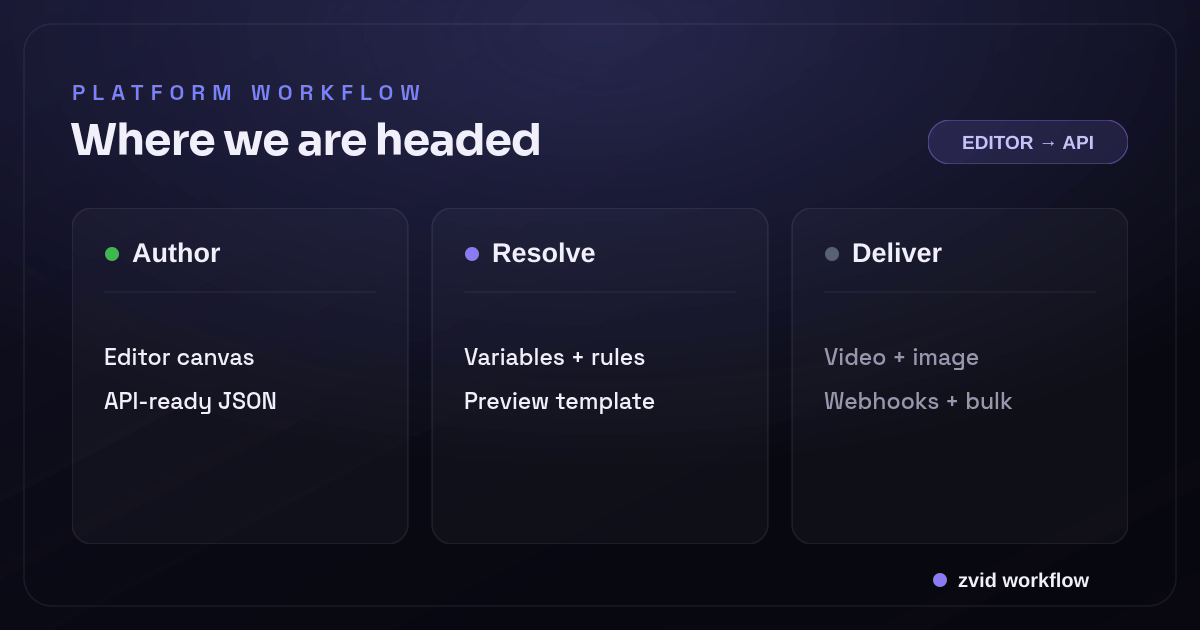
A JSON-to-video API is most useful when JSON is more than a one-off timeline dump. In a production Zvid workflow, the project is a portable creative document, the editor is a visual authoring surface for that document, a template turns stable design into reusable infrastructure, variables provide request-time data, bulk rendering fans one design out across many outputs, and webhooks return completion state to your application.
That platform model matters because different workloads need different paths. A generated one-off composition may submit a full payload. A product campaign should usually render a stored template with variables. A thumbnail service should submit an image project. A CRM campaign may send hundreds of template variable sets to the bulk endpoint. The render job and its delivery state remain asynchronous in every case.
The official Zvid overview and Template Basics are the best starting references for the current model.
Rendered in Zvid from a reusable template with article-specific variables.
The five objects in a production Zvid system
Developers often call all of these objects “the JSON.” Give them separate names in code and storage.
| Object | Responsibility | Example identifier |
|---|---|---|
| Project | Complete video or image composition | draft JSON or prj_… |
| Template | Reusable project with declared defaults and placeholders | tpl_… |
| Render request | Payload/template selection, variables, overrides, webhook URL | application request ID |
| Render job | Queue and processing state for one output | job UUID |
| Bulk batch | Group of related render jobs and item-level validation outcomes | blk_… |
This separation makes versioning and debugging much easier. A job can fail while the source template remains valid. A bulk batch can contain both accepted and rejected items. Two jobs can use the same template version but different variables. A project can be a saved editor draft without being a template or a rendered file.
One JSON model, two authoring paths
Zvid supports code-first and visual-first authoring without forcing a permanent choice.
In the code-first path, your application creates project JSON from a schema, configuration, or AI-assisted plan. You can validate it, render it directly, or import it into the editor.
In the visual-first path, a creator works in the browser-based Zvid Editor: canvas, inspector, timeline, scenes, media, subtitles, variables, Design Studio, and render/export controls. Export returns API-ready JSON. Save as template returns a reusable template ID.
The round trip is the important feature. The visual editor is not a separate output format that engineering must translate. A designer can refine the same project structure that a backend later renders.
Use the editor for:
- Composition, typography, timing, transitions, and media framing
- Testing long and short variable values on the stage
- Building reusable Design Studio elements and animated backgrounds
- Reviewing scene order, subtitles, and safe areas
- Saving a project as a template after the design is approved
Use application code for:
- Input validation and business rules
- Template and version selection
- Variable assembly and localization
- Direct, image, or bulk render requests
- Webhook verification and job-state persistence
- Review, publishing, and regeneration policy
Choose the correct render path
Direct project render
Send a full project as payload when the composition itself is generated or one-off.
{
  "payload": {
    "name": "weekly-status-video",
    "resolution": "full-hd",
    "duration": 10,
    "backgroundColor": "#0F172A",
    "visuals": [
      {
        "type": "TEXT",
        "text": "The release is ready",
        "position": "center-center",
        "style": {
          "fontSize": "86px",
          "fontWeight": 800,
          "color": "#FFFFFF"
        }
      }
    ]
  }
}
Direct rendering keeps the source self-contained, but your application owns the entire visual structure. That is appropriate for generated data visualizations or compositions that truly differ every time. It is inefficient when only a headline, image, or price changes.
Stored template render
Send template plus variables when the design is stable and content varies.
{
  "template": "tpl_xxxxxxxxxxxxxxxxxxxx",
  "variables": {
    "headline": "Cairo market update",
    "accent": "#22D3EE",
    "showSource": true,
    "metrics": [
      { "label": "New listings", "value": "128" },
      { "label": "Median days", "value": "34" }
    ]
  },
  "overrides": {
    "name": "cairo-market-update"
  },
  "webhookUrl": "https://example.com/hooks/zvid"
}
Request variables merge over safe defaults declared in the template. Output overrides apply after template resolution. Preview the template with the same representative values before final rendering.
Bulk template render
Use the bulk endpoint when one template should produce many independent outputs. Each item receives its own variable set and becomes its own render job.
{
  "template": "tpl_xxxxxxxxxxxxxxxxxxxx",
  "name": "regional-market-updates",
  "variables": {
    "showSource": true
  },
  "items": [
    {
      "name": "cairo-update",
      "variables": { "headline": "Cairo market update", "accent": "#22D3EE" }
    },
    {
      "name": "alexandria-update",
      "variables": { "headline": "Alexandria market update", "accent": "#F59E0B" }
    }
  ],
  "webhookUrl": "https://example.com/hooks/zvid"
}
Bulk validation is item-aware. Keep the original index or your own record ID so rejected items can be fixed and resubmitted without duplicating the accepted jobs. Read the current Bulk Rendering documentation before setting application limits; the account's active plan controls the effective batch and project limits.
Still-image render
Set type: "image" when the output should be PNG, JPG/JPEG, or WebP. Image projects use the same composition system for text, HTML/Design Studio output, images, SVG, positioning, filters, and shapes, but they do not use video-only timeline fields, scenes, audio, subtitles, video elements, or GIF elements.
{
  "payload": {
    "type": "image",
    "name": "market-update-card",
    "width": 1200,
    "height": 630,
    "outputFormat": "webp",
    "quality": 90,
    "backgroundColor": "#0F172A",
    "visuals": [
      {
        "type": "TEXT",
        "text": "Cairo market update",
        "position": "center-center",
        "style": {
          "fontSize": "72px",
          "fontWeight": 800,
          "color": "#FFFFFF"
        }
      }
    ]
  }
}
Submit image work through POST /api/render/image/api-key when you want the integration to reject non-image payloads explicitly. The Rendering Images guide covers transparency, quality, and snapshot behavior.
Templates are a data contract, not just saved JSON
A template declares defaults and references values with {{placeholders}}. Placeholders can be used in text, HTML, CSS, URLs, colors, numeric fields, and nested object paths.
Dynamic content adds two structural controls:
conditionremoves a scene or element when its boolean value is false.iterateclones a scene for each item in an array.
{
  "variables": {
    "showDisclaimer": true,
    "highlights": [
      { "title": "Templates", "detail": "Design once" },
      { "title": "Bulk", "detail": "Render many" },
      { "title": "Webhooks", "detail": "Deliver reliably" }
    ]
  },
  "scenes": [
    {
      "id": "highlight",
      "iterate": "highlights",
      "iterateAs": "highlight",
      "duration": 3,
      "visuals": [
        {
          "type": "TEXT",
          "text": "{{highlight.title}} — {{highlight.detail}}",
          "position": "center-center"
        }
      ]
    },
    {
      "id": "disclaimer",
      "condition": "{{showDisclaimer}}",
      "duration": 2,
      "visuals": [
        { "type": "TEXT", "text": "Illustrative data", "position": "center-center" }
      ]
    }
  ]
}
Conditions intentionally do not provide an arbitrary expression language. Calculate commercial or application logic before submission and pass a boolean. Iteration repeats scenes inside one video; it is not a substitute for a bulk request that creates multiple output files. The Dynamic Content guide documents the resolution behavior.
Treat validation, rendering, and review as separate gates
A mature pipeline has three gates:
- Application validation confirms that incoming data meets your business schema.
- Zvid validation confirms that the resolved project meets the current render schema and account limits.
- Visual review confirms that the output communicates correctly.
Do not collapse these into one “job succeeded” boolean. A technically valid result can still have a title that wraps badly or an image crop that hides the product. A render can also fail after acceptance when a remote asset cannot be fetched.
Generated project JSON deserves extra constraints. Let an AI system propose copy, scene intent, or structured data inside a schema you control. Do not allow it to invent arbitrary element fields or remote URLs and pass them directly to production. Resolve the proposal into an approved template or validated project first.
JSON-to-video terminology without the ambiguity
Searches for JSON to video, JSON2Video, or a JSON2Video API often mix several use cases: converting structured JSON to an animation, generating videos from JSON records, controlling a video editor through an API, or sending a prompt to a generative model. The useful architectural question is not the label. It is which decisions the input actually controls.
In Zvid, structured JSON can describe a complete project or the variables supplied to a stored template. That lets an application automate repeatable video workflows while keeping layout, timing, media, and output behavior inspectable. A developer can render one direct project, generate videos from JSON data in bulk, or use the same template for video and still-image creation.
This is a different use case from a prompt-only video generation service. The visual editor and project schema make the resolved composition reviewable before delivery. Programmatically generated does not have to mean opaque: the strongest video automation systems preserve the source record, template version, resolved render input, and job result together.
What a complete JSON-to-video integration automates
A complete integration does more than convert JSON to video. It validates structured JSON, resolves approved media, previews video templates, submits the job with an API key, receives a webhook, and associates the output with the source record. That is the minimum chain for dependable video production at scale.
Keep optional services around that chain modular. A video editing API may prepare an existing clip; an AI-generated asset may come from a separate provider; a subtitle service may return captions; and the publishing system may distribute the final video content. Zvid’s project or template remains the explicit composition contract. This prevents one “JSON2Video” label from hiding several unrelated APIs and makes each failure independently retryable.
Watch the editor-to-output model in a real Zvid render
The demo below is adapted from Zvid's published Product Demo Short. It uses a landscape screen recording, timed feature callouts, and an end card. The same project can be opened visually, saved as a template, rendered with new variables, or exported as JSON.
A real Zvid render adapted from the published saas-product-demo example for this workflow.
That round trip is a useful test for a platform claim: if a composition is designed visually but cannot be inspected or automated as the same project, the production handoff remains fragile.
Design the delivery layer before volume arrives
Every output becomes a job. Your application should store:
- Its own correlation ID
- Source record and source-data hash
- Project or template version
- Zvid job ID and optional bulk ID
- Submitted variables and output overrides
- Current state and failure reason
- Final CDN URL and thumbnail URL where applicable
- Review and publication state
Use polling for a small first integration or recovery worker. Use signed webhooks for normal event-driven completion. Registered endpoints receive selected events account-wide; a per-request webhookUrl receives the relevant job's completion. Zvid retries failed registered deliveries and exposes a delivery log. Your endpoint must still be idempotent.
Separate these states:
draft → validated → queued → rendering → completed → reviewed → published
                           ↘ failed      ↘ rejected
“Completed” means Zvid produced a file. It does not mean your organization approved the creative or published it.
A reference backend boundary
A small production service can use four modules:
- Input adapter: validates source records and normalizes them.
- Render planner: selects a template, builds variables, and creates a deterministic request hash.
- Job service: submits direct or bulk renders and persists IDs and states.
- Delivery worker: verifies webhooks, downloads or records outputs, and opens review tasks.
Keep creative JSON out of controller code. Store projects or template references as versioned assets. Keep API keys in server-side secrets. Make requests idempotent at the application layer so a network retry does not produce an accidental duplicate campaign.
For the minimal request, read How to Generate a Video from JSON. For a feed-backed implementation, use the Product Video API guide. For completion delivery, continue with Video Rendering Webhooks.
Architecture decisions to make explicitly
- Is the composition generated, or is it a template with changing values?
- Who owns visual approval: engineering, design, or both?
- Which variables may change per request, and what are their safe defaults?
- Which optional states need
condition? - Which arrays should create scenes with
iterate? - Which source records should create separate outputs through bulk rendering?
- What constitutes an application retry versus a new render?
- How are webhook signatures, deduplication, and stale deliveries handled?
- When does a completed render become publishable?
A JSON-to-video system becomes dependable when those answers are represented in data and state, not tribal knowledge.
FAQs
Is Zvid only a JSON video rendering API?
No. Zvid uses one project model across the API and a browser-based visual editor. It also provides saved projects, templates, variables, conditions, iterations, still-image rendering, bulk jobs, a dashboard, and webhooks.
Can I render a template without storing it first?
You can send a full payload containing declared variables, but a stored template is the cleaner reusable contract when a design is approved and rendered repeatedly.
Does iterate create multiple video files?
No. It expands a scene for array items inside one resolved project. Use bulk rendering to create multiple independent output files.
Should my backend poll or use webhooks?
Polling is acceptable for a first integration and recovery. Signed webhooks provide a cleaner production completion path, provided your receiver is secure and idempotent.
Start with one approved project and decide whether it is truly one-off or the beginning of a template. That single decision determines most of the architecture that follows.