Developer Tutorials
Automate B-Roll with AI, JSON, and the Zvid API
Plan B-roll as timed scene data, render clips through a reusable Zvid template, and review pacing, crops, captions, and sources.
By Mina RamzyPublished Updated
Automate B-Roll with AI, JSON, and the Zvid API
To automate B-roll with JSON, represent each supporting shot as a timed editorial decision: what the narration is saying, what visual evidence should appear, which approved media URL supplies it, how much of the source clip to use, and what text or caption must remain readable. Then pass that structured cue sheet into a reusable Zvid template and render the resolved scenes.
Zvid is the composition and rendering layer. It can place and trim video clips, images, text, audio, and subtitles on scenes and timelines. It does not make an arbitrary stock result editorially correct. Your selection logic still needs topic relevance, source policy, continuity, and human review.
The Video Elements reference covers source trimming, size, crop, filters, zoom, volume, and playback speed. The Editor media guide shows how creators can use uploads, public URLs, and built-in stock search while previewing the result on the canvas.
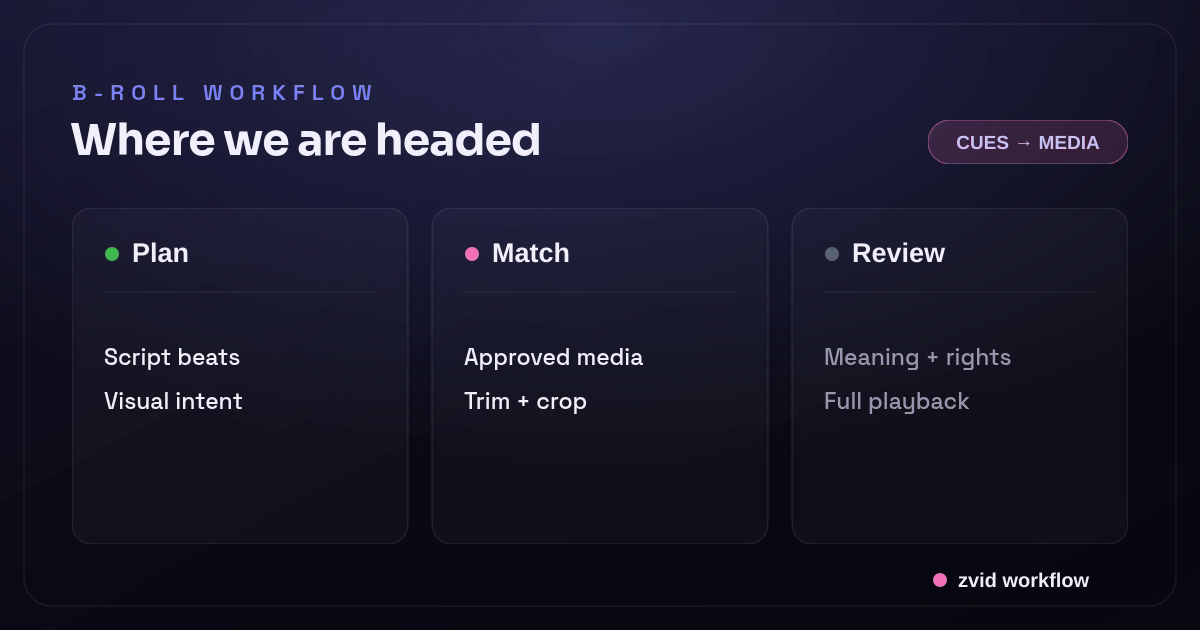
Plan, Match, and Review form one reviewable Zvid workflow.
Make the cue sheet the source of truth
Do not start with a folder of clips. Start with the story beats.
{
  "narrationId": "weekender-bag-v2",
  "segments": [
    {
      "id": "problem",
      "start": 0,
      "end": 3.2,
      "spokenText": "Most carry-ons waste the space around your laptop.",
      "visualIntent": "traveler struggling with an overpacked bag",
      "clipUrl": "https://videos.pexels.com/video-files/2887463/2887463-hd_1920_1080_25fps.mp4",
      "sourceBegin": 1.5,
      "sourceEnd": 4.7,
      "onScreenText": "Stop packing around the problem"
    },
    {
      "id": "solution",
      "start": 3.2,
      "end": 6.8,
      "spokenText": "A dedicated sleeve keeps the essentials organized.",
      "visualIntent": "hands placing a laptop into a travel bag",
      "clipUrl": "https://videos.pexels.com/video-files/853800/853800-hd_1920_1080_30fps.mp4",
      "sourceBegin": 0.8,
      "sourceEnd": 4.4,
      "onScreenText": "One place for every essential"
    }
  ]
}
This object is intentionally richer than [{src, duration}]. It preserves the editorial reason for each clip. That makes selection review possible before rendering and helps a human replace a weak result without reverse-engineering the script.
Separate media discovery from media approval
A production B-roll service usually has two media stages:
- Discovery: search uploads, your own library, or an approved stock provider using the visual intent.
- Approval: choose a full-quality source URL, record provider and attribution metadata when required, and lock the selected source for the render.
Do not let a free-text search run independently on every retry. The same job should use the same approved media unless the application deliberately creates a new creative version. Store the selected URL and source metadata with the cue sheet.
Useful selection checks include:
- The shot depicts the spoken concept rather than a loose keyword.
- Orientation and natural resolution suit the target canvas.
- The source is long enough for the requested trim window.
- The subject remains visible after
covercropping. - Adjacent clips do not jump between incompatible lighting or visual styles.
- The license and attribution requirements fit the publishing channel.
- The full-quality URL is stable and publicly accessible by the renderer.
The Zvid Editor includes stock search for supported providers and lets a creator preview video and GIF results before adding them. For brand-owned media, use stable uploads or URLs you control.
Turn the cue sheet into a template
One clean approach is to iterate a scene over segments. Each item supplies its clip, trim window, and on-screen line. Zvid resolves the array into sequential scenes.
{
  "name": "b-roll-story-template",
  "resolution": "instagram-reel",
  "frameRate": 30,
  "backgroundColor": "#0B1020",
  "outputFormat": "mp4",
  "variables": {
    "segments": [
      {
        "clipUrl": "https://videos.pexels.com/video-files/2887463/2887463-hd_1920_1080_25fps.mp4",
        "sourceBegin": 1.5,
        "sourceEnd": 4.7,
        "duration": 3.2,
        "line": "Stop packing around the problem"
      },
      {
        "clipUrl": "https://videos.pexels.com/video-files/853800/853800-hd_1920_1080_30fps.mp4",
        "sourceBegin": 0.8,
        "sourceEnd": 4.4,
        "duration": 3.6,
        "line": "One place for every essential"
      }
    ],
    "showSource": false,
    "sourceLabel": "Illustrative footage"
  },
  "scenes": [
    {
      "id": "segment",
      "iterate": "segments",
      "iterateAs": "segment",
      "duration": "{{segment.duration}}",
      "transition": "fade",
      "transitionDuration": 0.4,
      "visuals": [
        {
          "type": "VIDEO",
          "src": "{{segment.clipUrl}}",
          "videoBegin": "{{segment.sourceBegin}}",
          "videoEnd": "{{segment.sourceEnd}}",
          "width": 1080,
          "height": 1920,
          "position": "center-center",
          "resize": "cover",
          "volume": 0,
          "track": 0
        },
        {
          "type": "TEXT",
          "html": "<div style='font-size:64px;line-height:1.05;font-weight:800;color:#fff;text-shadow:0 3px 18px rgba(0,0,0,.75)'>{{segment.line}}</div>",
          "x": 70,
          "y": 1460,
          "width": 940,
          "anchor": "top-left",
          "track": 2
        },
        {
          "type": "TEXT",
          "condition": "{{showSource}}",
          "text": "{{sourceLabel}}",
          "x": 70,
          "y": 120,
          "anchor": "top-left",
          "track": 3,
          "style": {
            "fontSize": "28px",
            "color": "#FFFFFF",
            "backgroundColor": "#111827",
            "borderRadius": "12px"
          }
        }
      ]
    }
  ]
}
The template route is required here because iterate, condition, and placeholders resolve before the final project is validated. Preview representative variables, then render the stored template.
Keep timeline time and source time separate
B-roll automation uses two clocks:
- Scene or project time: when the clip appears in the finished video.
- Source time: which portion of the remote clip should play.
For a VIDEO element, videoBegin and videoEnd refer to the source file. Scene duration controls how long the resolved scene occupies in the output. Keep the source window long enough for the scene after accounting for playback speed.
Avoid forcing every clip to an identical duration. A simple product action may read in two seconds; a location reveal may need four. Let the cue sheet express the editorial beat, then validate total duration after scene expansion.
Scene transitions overlap time. If every scene has an explicit duration, Zvid computes the project duration from the scene sum minus transition overlaps. Review the resolved duration rather than assuming the raw segment sum is the final file length.
Use cropping and overlays intentionally
resize: "cover" fills the element box and may crop the source. contain preserves the full source with unused space. Neither choice is universally correct.
For automated vertical video:
- Prefer source footage whose subject is near the center or whose safe crop is known.
- Preview landscape-to-vertical crops before batching.
- Use
cropParamswhen the source needs a deterministic crop region. - Keep captions and important overlays away from platform controls.
- Add a scrim or text shadow when footage contrast changes.
- Use
volume: 0on B-roll clips when narration is the intended audio source.
Filters can unify a mixed set of clips, but they cannot repair unrelated subject matter. Apply restrained brightness, contrast, saturation, tint, or blur after the media selection is already coherent.
Coordinate B-roll with narration and subtitles
The cue sheet should be derived from the final narration timing. Build captions from the same transcript rather than estimating them independently.
If narration is a project-level audio track, place it in audios with explicit timeline timing. Add burned-in captions through the root-level subtitle object. Then align scene boundaries to sentence or idea boundaries where possible.
Do not cut the B-roll on every word. A useful rhythm is usually one shot per idea, with caption changes occurring inside the shot as needed. Fast edits can work for social content, but they should be a deliberate style rather than an automation default.
For the complete narration and caption model, see the official Zvid timeline and scenes guide. The subtitle tutorial covers the current caption object and animation modes.
Review the resolved template in the editor
The Zvid Editor helps with the part code cannot judge well: whether a crop, cut, or overlay feels right.
Use it to:
- Preview variable values instead of raw placeholders
- Scrub scene boundaries on the timeline
- Reframe or replace a weak clip
- Inspect the first and last usable frame of each source trim
- Check text against the brightest footage
- Confirm the vertical safe area
- Export the final template JSON after visual changes
Keep the editor and API roles connected. A design fix in the editor should update the template version used by the backend; it should not become an untracked manual exception.
Where AI can help with B-roll—and where it should stop
An AI-assisted B-roll workflow can reduce search time, but it should not turn a prompt into an unreviewed final video. An AI model can classify a script beat, propose search terms, or rank candidate clips. A human or a policy service should still confirm that the selected footage is relevant, licensed, and factually appropriate for the original video.
This is also the right way to evaluate an “AI B-roll generator.” Ask whether the tool returns source identity, usage rights, match rationale, trim points, and a reviewable cue sheet. A professional video needs more than plausible imagery. It needs relevant B-roll footage that supports the spoken claim at the correct moment.
In an API workflow, keep the discovery credential or API key outside the render payload. Store the approved media URL and timing in the cue sheet, then let Zvid compose it. That design works for short-form videos, explainers, and training content without making the AI video stage responsible for rights or editorial truth. If you publish a GitHub example, use placeholder credentials and media that readers are allowed to reuse.
Example orchestration without manual editing
An n8n workflow or custom worker can receive the approved script, call an AI service to suggest search phrases, query a licensed media source, and pause for selection. After approval, one API call can add B-roll data to the render record and submit Zvid. The automation should persist each decision instead of passing a temporary prompt directly from one node to the next.
This removes repetitive manual editing while preserving editorial control. It also makes watermarks and source licensing visible before delivery. If an upstream OpenAI or other model request fails, retry only that discovery stage; do not regenerate the original video or replay a completed render. Stage-level retries are the difference between an AI-assisted workflow and an unpredictable chain of tools.
Watch a real Zvid B-roll composition
The demo below is adapted from Zvid's published Motivational Reel template. It uses cinematic B-roll, timed message changes, and a closing payoff. The template is a useful reference for pacing because the footage and text advance one idea at a time.
A real Zvid render adapted from the published social-motivational-reel example for this workflow.
The review question is not “did every clip download?” It is “does each shot make the spoken idea easier to understand?”
A production B-roll pipeline
- Lock the narration script and audio.
- Produce caption and sentence timing.
- Convert sentences or ideas into visual intents.
- Discover candidate media from approved sources.
- Store the selected full-quality URLs and attribution metadata.
- Build template variables from the cue sheet.
- Preview the resolved template and repair invalid records.
- Render through Zvid and receive completion through a webhook.
- Inspect representative frames and full pacing.
- Approve before publishing; replace only failed segments when revising.
This workflow is deterministic enough to debug and flexible enough to incorporate AI-assisted search or scripting. The model can suggest visual intents; the system still records exactly what was selected and rendered.
Common B-roll automation failures
- Searching with isolated nouns and getting visually irrelevant clips
- Re-running discovery on every retry and producing nondeterministic outputs
- Using preview URLs instead of full-quality media
- Ignoring source orientation until the vertical crop hides the subject
- Confusing source trim time with output timeline time
- Letting every segment use the same arbitrary duration
- Playing B-roll source audio under the narration by accident
- Covering captions with text overlays
- Treating a successful render as editorial approval
FAQs
Does Zvid generate the B-roll footage itself?
Zvid renders the composition from supplied media URLs, uploads, or selected stock sources. Media discovery or generative creation is a separate step from deterministic video composition.
Should B-roll be represented as top-level timed video layers or scenes?
Use scenes when the story is sequential and each beat has its own local timeline. Top-level timed layers can work for controlled overlays, but scenes are easier to reason about for narration-driven edits.
Can an array create one B-roll scene per item?
Yes. A template scene can use iterate to repeat for every object in an array. Each item can provide its own media URL, source trim, duration, and copy.
Automate the cue sheet and render path, not the editorial judgment. The best B-roll system makes every decision inspectable before it makes the workflow fast.