Developer Tutorials
How to Add Subtitles to Video with JSON
Add timed, word-animated subtitles to Zvid videos with inline captions or SRT/VTT, then review them in the visual editor.
By Mina RamzyPublished Updated
How to Add Subtitles to Video with JSON
To add subtitles to a video with JSON in Zvid, put one root-level subtitle object in the video project and provide either inline captions or a public SRT/VTT src. Each caption uses start and end times in seconds. You can let Zvid distribute word timing from the caption text or provide exact words[] timing for transcript-accurate karaoke, highlight, fill, pop, and other word animations.
Use inline captions when your application already owns the transcript data. Use src when an SRT or VTT file is the durable source. Do not send both in the same subtitle object.
The current Subtitle reference documents the JSON contract. The Editor subtitle guide shows the visual workflow for importing, retiming, styling, and previewing captions on the stage.
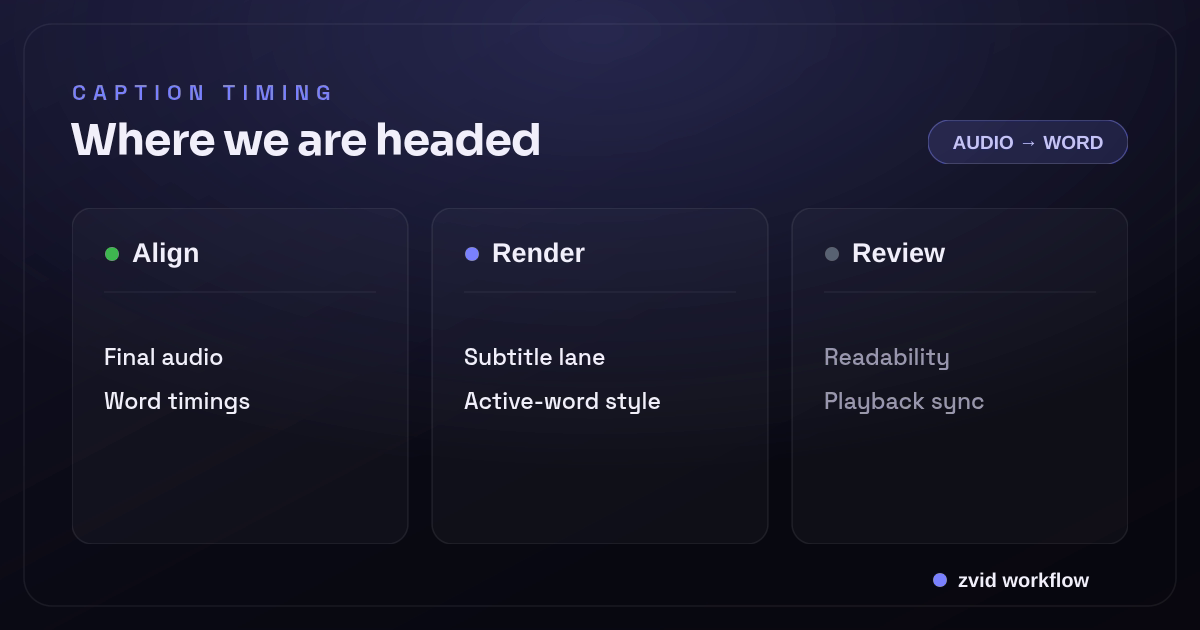
Align, Render, and Review form one reviewable Zvid workflow.
Choose the caption source before styling
There are three common starting points:
- Timed transcript data: your speech-to-text service returns caption or word timestamps. Convert the values to seconds and build
subtitle.captions. - SRT or VTT: store the approved file at a public HTTPS URL and use
subtitle.src. - Plain script only: create or record the final narration first, then produce timings from the audio. Script length is not reliable timing data.
Caption text should reflect what the viewer actually hears. If the recorded voiceover changes a word or sentence order, update the transcript before rendering. Burned-in subtitles cannot be corrected after the file is produced without another render.
Use the current flat subtitle fields
For new projects, use the flat subtitle style keys rather than the legacy nested styles object. The content below uses inline captions, karaoke animation, a highlighted active word, a readable outline, and a constrained line length.
{
  "subtitle": {
    "captions": [
      {
        "start": 0.4,
        "end": 2.8,
        "text": "Build the timing map first"
      },
      {
        "start": 2.8,
        "end": 5.7,
        "text": "Then let visuals follow the narration"
      }
    ],
    "animation": "karaoke",
    "font": {
      "family": "Inter",
      "size": 52,
      "color": "#FFFFFFFF",
      "bold": true
    },
    "activeWord": {
      "color": "#FDE047FF"
    },
    "stroke": {
      "color": "#111827",
      "width": 3
    },
    "background": {
      "color": "#111827",
      "opacity": 0.72,
      "padding": 12
    },
    "position": "bottom-center",
    "margin": {
      "x": 64,
      "y": 72
    },
    "maxWordsPerLine": 6
  }
}
The subtitle object belongs at the project root, beside scenes, visuals, and audios. Subtitles are available for video projects, not still-image renders.
Decide whether segment timing is enough
A caption needs start, end, and text or words. When you provide text only, Zvid distributes word timing automatically. That is useful when the segment boundaries are accurate and the animation does not need phoneme-level precision.
Provide words[] when:
- The active word must follow fast narration closely.
- Pauses inside one caption are meaningful.
- The transcript system already returns word timestamps.
- You are using an animation where timing drift is visually obvious.
{
  "start": 0.5,
  "end": 2.4,
  "text": "Templates keep the design stable",
  "words": [
    { "start": 0.5, "end": 0.9, "text": "Templates" },
    { "start": 0.9, "end": 1.15, "text": "keep" },
    { "start": 1.15, "end": 1.35, "text": "the" },
    { "start": 1.35, "end": 1.75, "text": "design" },
    { "start": 1.75, "end": 2.4, "text": "stable" }
  ]
}
Keep the caption interval consistent with its words: the first word should not begin before the caption, the last word should not extend beyond it, and word intervals should stay in spoken order.
Pick an animation for the reading task
Zvid currently supports 12 subtitle modes: normal, none, one-word, karaoke, progressive, highlight, fill, pop, bounce, fade, slide, and typewriter.
Choose by reading behavior, not novelty:
normalworks for training, interviews, and information-dense content.karaokekeeps the full caption visible while changing the spoken word's color.highlightadds an active-word background and works well on busy footage.fillcreates a true color sweep across the spoken word.one-word,pop, andbouncesuit short, fast social edits but can become tiring in long videos.progressive,fade,slide, andtypewriterreveal text over time; test reading speed carefully.
Use maxWordsPerLine and short caption segments to control density. A large font does not rescue a twelve-word line on a vertical video.
Style captions against the footage, not a blank canvas
Caption readability depends on what is behind the text. Review at least the brightest and busiest moments in the video.
Use one or more of these safeguards:
- A dark or light outline with enough width to separate the letters
- A semitransparent caption background
- An active-word background for highlight mode
- Bottom margin that keeps captions above platform controls
- Shorter lines rather than a smaller font
- A consistent font family and transform across the template
Do not place ordinary text layers where subtitles already sit unless the layers are intentionally coordinated. The editor's subtitle lane and stage preview make collisions easier to spot than reading timestamps in isolation.
Import and review captions in the Zvid Editor
The editor can import SRT, VTT, ASS, or Whisper JSON, load a caption file by URL, or add captions at the playhead. It exposes per-caption and per-word timing, split and merge operations, even retiming, style controls, and live animation preview.
A productive workflow is:
- Import the approved transcript or file.
- Correct text and segment boundaries.
- Set the intended animation and typography once.
- Scrub through scene changes and busy footage.
- Export the project or save it as a reusable template.
Anything configured visually maps to the same root-level subtitle JSON used by the API. That makes the editor a review surface rather than a disconnected post-production step.
Submit the captioned video through the API
The subtitle object travels inside the project payload. A per-request webhook can deliver the terminal job result without a polling loop.
curl -X POST https://api.zvid.io/api/render/api-key \
  -H "x-api-key: $ZVID_API_KEY" \
  -H "Content-Type: application/json" \
  -d '{
    "payload": {
      "name": "captioned-product-demo",
      "resolution": "tiktok",
      "duration": 8,
      "visuals": [
        {
          "type": "VIDEO",
          "src": "https://videos.pexels.com/video-files/853800/853800-hd_1920_1080_30fps.mp4",
          "width": 1080,
          "height": 1920,
          "position": "center-center",
          "resize": "cover",
          "volume": 0
        }
      ],
      "subtitle": {
        "captions": [
          { "start": 0.5, "end": 3.2, "text": "Build the timing map first" },
          { "start": 3.2, "end": 6.6, "text": "Then review every scene change" }
        ],
        "animation": "highlight",
        "activeWord": { "color": "#111827FF", "background": "#FDE047FF" },
        "font": { "family": "Inter", "size": 58, "color": "#FFFFFFFF", "bold": true },
        "stroke": { "color": "#111827", "width": 3 },
        "position": "bottom-center",
        "margin": { "x": 70, "y": 110 },
        "maxWordsPerLine": 5
      }
    },
    "webhookUrl": "https://example.com/hooks/zvid"
  }'
Use a media URL you control in production. Remote files must be publicly reachable by the renderer.
Generate subtitles, transcribe audio, and render video as separate steps
Subtitle automation is easier to debug when three jobs stay separate. Transcription turns speech into text and timing. Caption preparation chooses language, line breaks, punctuation, and word timing. Rendering burns the approved subtitle track into the video. Zvid handles the final composition; your application should know where the transcript and timing came from.
A practical pipeline can upload or reference the final audio, transcribe it with an upstream service, review the result, and then submit synchronized subtitles in JSON, SRT, or VTT form. If the source changes, regenerate the timing before rendering the entire video. Do not replace one sentence in the script while silently keeping the old timecodes.
“Automatically generate subtitles” therefore should not mean “skip review.” Test the chosen format, reading speed, safe area, and active-word animation against the real footage. Animated subtitles can improve short-form video content, while simpler video subtitles are often better for training or long explanations. Whether the preparation code is written in Python, JavaScript, or another language, keep the transcript revision and timing revision in the render record.
Watch a real Zvid subtitle template
The demo below is adapted from Zvid's published Subtitled Clip template. It combines a talking-head video, timed caption blocks, and an end-card CTA. The source template is useful because caption readability can be judged against actual moving footage.
A real Zvid render adapted from the published social-subtitled-clip example for this workflow.
Compare the first spoken phrase, a middle phrase, and the final transition. A caption system is only correct when its text, timing, styling, and scene context agree.
Production checks for subtitle automation
- Normalize all timestamps to seconds before building the payload.
- Reject captions with
end <= start. - Keep captions in chronological order.
- Verify word timing stays inside its parent caption.
- Use exactly one of
srcandcaptions. - Do not mix the legacy
stylesobject with the current flat style fields. - Review the longest line and fastest passage.
- Test bottom captions against mobile UI safe areas.
- Confirm the transcript matches the final audio, not an earlier script.
- Keep a transcript or caption version beside the render job.
For full narration alignment, continue with the official Zvid timeline and scenes guide. For the broader production model, see the live JSON-to-Video API Guide.
FAQs
Can Zvid load subtitles from an SRT or VTT URL?
Yes. Set subtitle.src to a public SRT or VTT URL. Do not also provide inline captions in the same object.
Do I need word timings for karaoke captions?
Not always. Zvid can distribute word timing from caption text. Provide exact word timings when tight synchronization matters or the transcript service already supplies them.
Are subtitle styles the same as ordinary text layers?
No. Subtitles use the root-level subtitle system, with caption timing, word animations, font, stroke, background, position, and margin controls. Ordinary text elements are separate visual layers.
Start with accurate segment boundaries and a readable static style. Add word animation only after the captions already match the audio.