Tutorials
Create a weekly news roundup video with n8n
Turn trusted RSS feeds into a weekly countdown video with n8n, narration and captions. Review sources, preview the design and render an MP4, or use the Node.js companion.
 By Mina RamzyPublished
A weekly newsletter already has sources, a subject and a publishing rhythm. Turning it into a video adds another job: choosing the stories, writing for speech, finding visuals and keeping every edition consistent.
This n8n template collects recent RSS headlines, drafts a five-story countdown and turns it into a vertical video with narration, word-timed captions, source labels and your branding. Zvid renders the MP4. You review it and decide where it belongs. A complete Node.js companion offers the same design with separate preparation and rendering commands.
See what the workflow creates
The supplied edition runs for 51.1 seconds at 1080 × 1920. It uses five clips, narration, a quiet music bed and 44 caption cues. Its project received a 52-credit render quote in a fresh validation. Your quote changes with the resolved duration and resolution.
The download ships with dryRun: false, so a full execution renders and spends Zvid credits. Change it to true during setup to validate the design and save an editor draft. Script and voice generation happen before that choice, so a dry run can still incur OpenRouter and ElevenLabs charges. Reading feeds and inspecting the configuration do not call either service.
If you already have reviewed story records and want a simpler, silent brief, the news video from JSON guide starts from those records. This workflow adds feed collection, model-assisted curation and narration.
1. Get the workflow and prepare your accounts
Use the Zvid workflow page, official n8n template for this walkthrough.
You need an n8n workspace that can install the Zvid community node, a Zvid account and API key, an OpenRouter API key, an ElevenLabs API key with text-to-speech access, and public RSS feeds you trust. You do not need a separate stock-media account: the workflow searches Zvid's stock library through your Zvid connection.
Start with the included AI and tech niche, The Weekly Signal brand and three feed addresses. The sources are examples, not a requirement to use those publishers. Current feeds will produce a different edition from the historical sample.
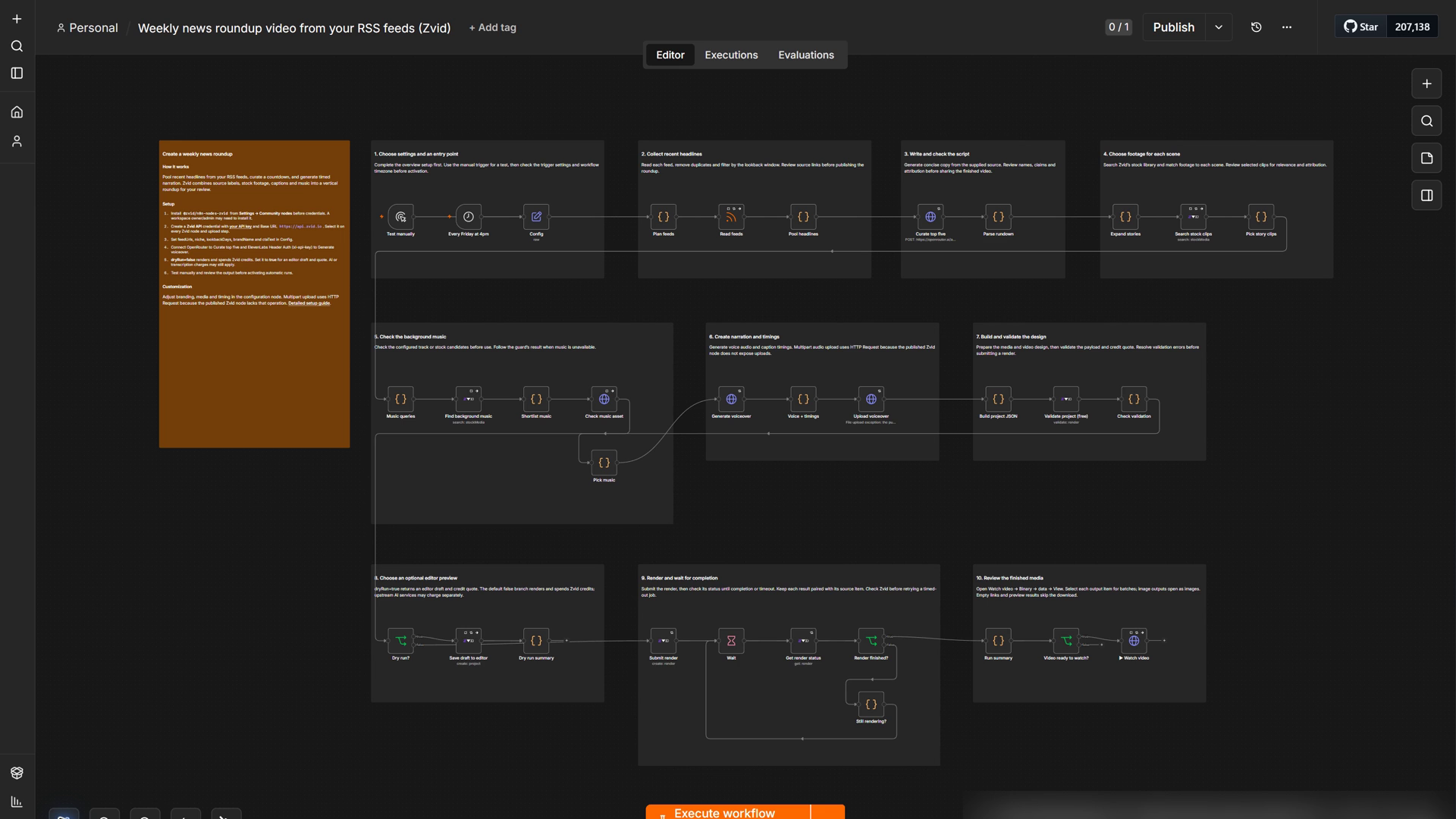
2. Install, import and connect credentials
Keep the workflow unpublished while setting it up. In older n8n versions, leave its Active switch off.
- Open Settings → Community nodes → Install. Enter
@zvid/n8n-nodes-zvidand install it. A workspace owner or administrator may need to do this. Install the package before configuring Zvid credentials. - Create a workflow, open the menu in the upper right and choose Import from File. Select the downloaded JSON and save it.
- Visit app.zvid.io/api-keys, create a key and copy it privately. Open Validate project (free), create a Zvid API credential and enter that key. Keep Base URL as
https://api.zvid.io. - Select the same Zvid credential on Search stock clips, Find background music, Save draft to editor, Submit render and Get render status. On Upload voiceover, choose Predefined Credential Type → Zvid API and select it there too. The authentication guide explains how to protect and rotate the key.
The upload step uses HTTP Request because the published Zvid node does not expose multipart file uploads. The workflow uses the installed Zvid node for the supported search, validation, draft and render operations.
For the writing service, sign in to OpenRouter's API keys page, create a secret key and copy it. Open Curate top five, create an OpenRouter credential, paste the value into API Key and save it. Keep the supplied openai/gpt-4.1-mini model for the first test. The model must support the workflow's JSON response format. n8n's OpenRouter credential instructions cover the same setup.
For narration, open Developers → API Keys in your ElevenLabs account and create a key with Text to Speech permission and a suitable usage allowance. Open Generate voiceover in n8n and create a Header Auth credential: Name is xi-api-key; Value is the secret key. Save and select it. Keep the request URL ending in /with-timestamps, because the returned alignment supplies the caption timing. ElevenLabs authentication documents permissions and quota restrictions.
Choose a voiceId that your ElevenLabs account can use. The shipped value is nPczCjzI2devNBz1zQrb, labelled Brian. If your account cannot access it, choose a voice in ElevenLabs, copy its Voice ID and replace the value in Config. Do not put any API key in Config or the workflow JSON.
3. Choose a small input
Open Config. Keep the branding and caption settings unchanged for your first run, then check these fields:
| Setting | Shipped value | First-run choice and meaning |
|---|---|---|
niche |
AI and tech |
Keep it for the sample setup, or choose one clear subject. It appears in the video and guides story selection. |
feedUrls |
Three public tech feeds | Start with one or two feeds you recognize. Keep the JSON array, quotes and commas. |
lookbackDays |
7 |
Dated entries older than seven days are excluded. Undated entries remain eligible. |
targetSeconds |
60 |
A writing target, not a guaranteed output duration. Actual speech determines timing. |
brandName |
The Weekly Signal |
The name on each scene and the closing card. |
ctaText |
Follow for next week's five |
The closing invitation. |
dryRun |
false |
Change to true before testing the complete path. |
Click Execute step on Config, then execute Plan feeds, Read feeds and Pool headlines in order. Inspect the output before continuing. Plan feeds should show one item per usable address. Pool headlines should contain a nonempty pool with titles, snippets, source domains and links.
The pool keeps at most 40 entries, removes repeated normalized titles and filters dated items against the lookback window. It does not read every linked article in full or guarantee a complete view of the week's news. Feed order can affect which entries reach the cap. An unavailable feed contributes nothing; if all sources are empty or too old, the workflow stops before curation.
For example, a feed entry's title and short excerpt become a proposed spoken sentence. Its real link supplies the on-screen source label. The model returns a source index, so an invalid index leaves the label empty instead of inventing a publisher. That guard does not fact-check the sentence itself.
4. Preview and check the estimate
With dryRun: true, click Execute workflow. This calls OpenRouter to create the rundown, searches for footage and music, creates narration in ElevenLabs, uploads the audio and builds the design. Those writing and speech calls can be charged even though no MP4 is rendered.
Open Parse rundown and read the intro, each story's headline and blurb, and the outro. Follow the source links to verify important claims, names and dates. Stock footage illustrates the subject; it is not evidence that the pictured event happened. There is no built-in human approval pause before narration, so this inspection happens after those upstream calls have run.
Open Dry run summary and check creditsRequired, countdown, warnings and editorLink. Open the link to play the saved draft in the Zvid editor. If the link is missing, inspect Save draft to editor: the workflow still returns its report when saving the draft fails.
Review all scenes, pronunciation, source labels, caption timing, image crops and the closing message. An editor draft is a preview, not a downloadable finished MP4. Editing that draft does not update the n8n builder or the next run.
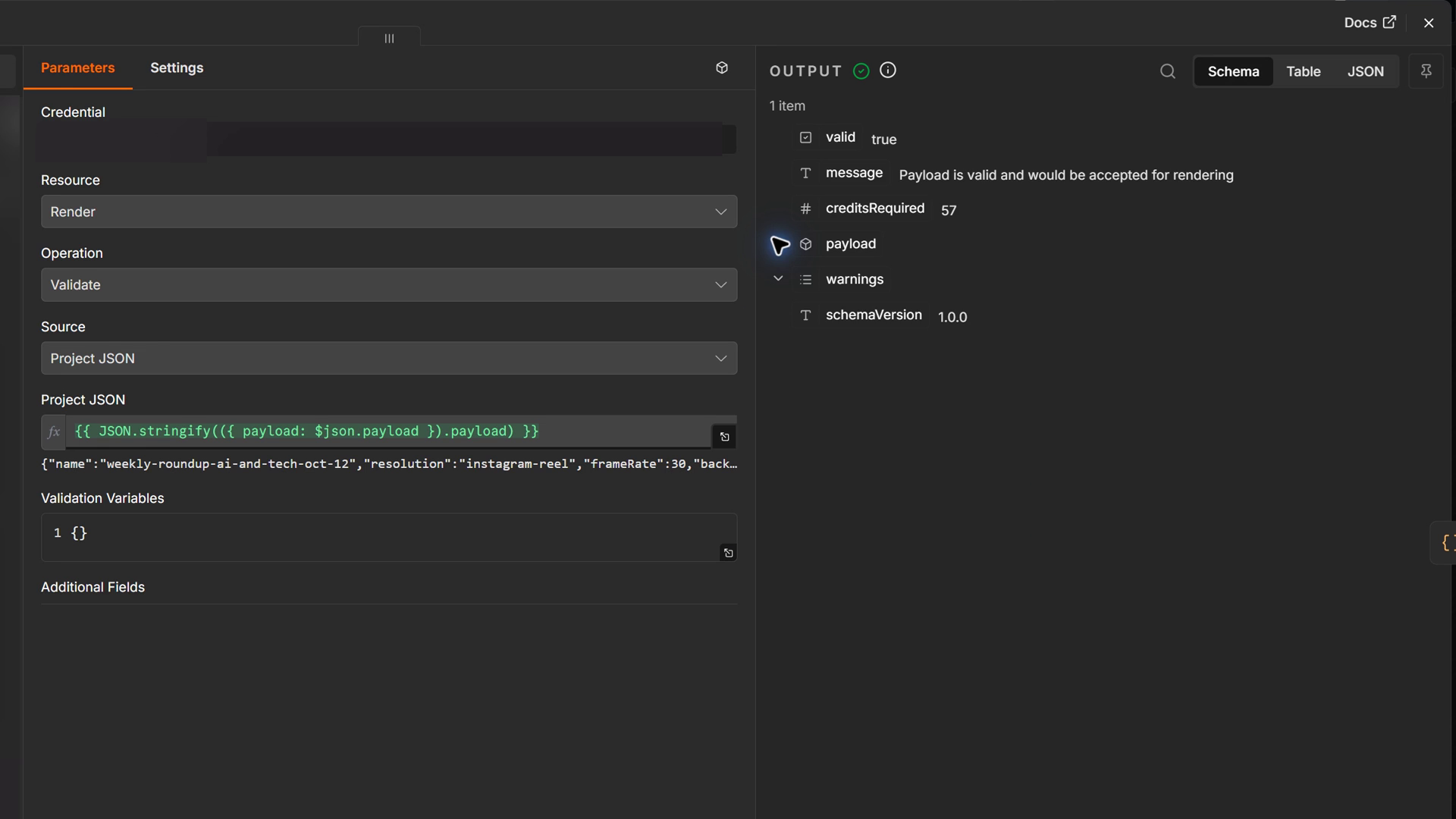
Zvid validation does not queue a render or reserve render credits. The full n8n dry-run path does more than validation, so keep the separate writing and voice costs in your budget.
5. Render, watch and save
When you are ready for a new paid run, set dryRun: false and execute the workflow. A full rerun reads the feeds and generates the script and narration again. It can select different stories and incurs those upstream charges again; it does not simply render the saved editor draft.
If you need to render the exact draft you just reviewed, use the Zvid editor's render controls for that saved project instead. For an unattended production flow, add your own approval and persisted-edition steps before treating a preview as an approved next execution.
Keep the n8n execution record. Submit render returns the accepted jobId. Get render status checks that job every ten seconds by default. The workflow stops on a reported failure and limits its wait to twenty minutes. A timeout does not prove that the job stopped: check the accepted job in app.zvid.io before submitting anything again.
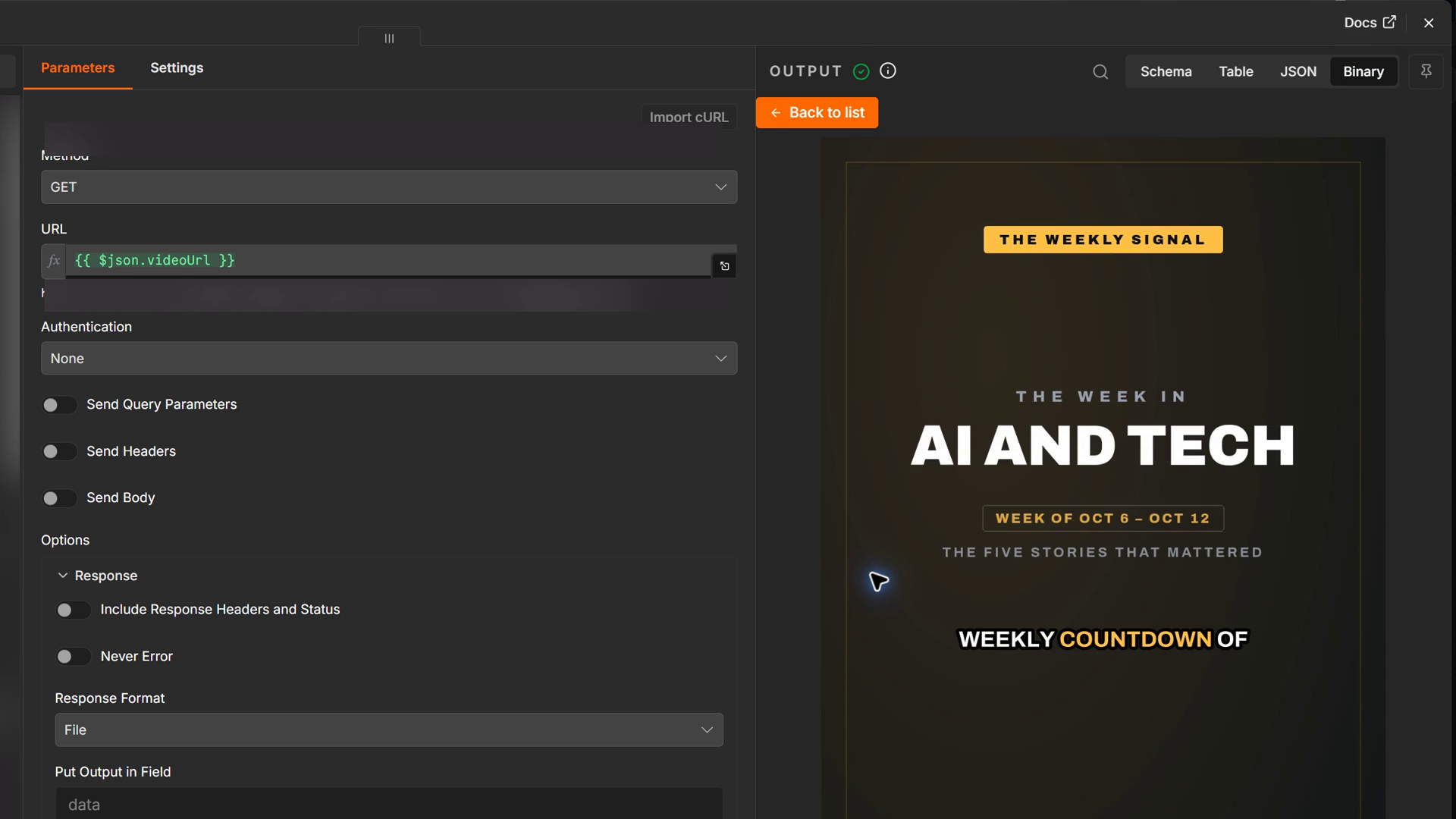
After completion, open ▶ Watch video → Binary → data → View. Play the whole video, then use the binary download control to save the MP4. Run summary also contains videoUrl, jobId, countdown, videoSeconds and missingClips. Save the file before its hosted output link expires. The render lifecycle guide explains completion, failure and output retention.
6. Use the result in your publishing process
The supplied workflow ends with the video and its summary. It does not upload to YouTube, send a newsletter or post to social platforms. Review the downloaded file, then upload it through your normal publishing tool. Put article links and any further context in the surrounding post or newsletter: source labels inside an MP4 are not clickable links.
Keep the chosen stories and links with each edition. If a claim changes after publication, the existing MP4 does not update. Decide whether to correct the surrounding text, replace the video or remove it. Do not rerun the entire workflow just to retrieve a completed file; reopen the original execution or saved job instead.
Customize, then enable the weekly schedule
Change brandName, ctaText, brandBackground, brandAccent, headlineColor and font in Config to match your publication. Keep niche short enough to read on the title card. Review a long headline and a missing-footage case before scheduling.
When no clip matches a story, the builder uses a branded dotted panel. When no suitable music file passes its size and availability check, it leaves the music bed out. Those fallbacks keep the edition usable, but they do not replace editorial review. Inspect missingClips and the selected media if the result feels repetitive.
Open Every Friday at 4pm to change the weekly day and hour. In the workflow menu, open Settings → Timezone, select your intended timezone and save. Publish the workflow only after reviewing one complete edition and confirming the service credentials and quotas. n8n's Schedule Trigger documentation explains how the workflow and instance timezones interact.
The API-key credentials do not have an OAuth refresh flow in this template. If a key is revoked, rotated or restricted, update the saved credential. Check service quotas and failed executions regularly. A weekly trigger does not renew a key, top up balances or guarantee that a feed remains available.
There is no persistent story ledger. Deduplication applies within one pooled run, not across published editions. Overlapping date windows and undated feed entries can repeat stories. Add your own reviewed-story history if repetition across weeks matters.
Costs and practical limits
Budget for three separate services: OpenRouter for the script, ElevenLabs for narration and Zvid for the rendered video. n8n hosting and any publishing service have their own costs. The sample's 52-credit quote covers the Zvid render only.
Render credits depend on the resolved duration and resolution. targetSeconds: 60 does not impose a credit ceiling, and the n8n workflow does not stop at a configurable maximum quote. Review the dry-run estimate or add a spending gate before scheduling.
The workflow ranks feed excerpts, not independently verified reporting. It can miss important stories, choose weak summaries or pronounce a name incorrectly. Source attribution and word-timed captions improve the presentation; an editor still owns the final claims. Keep the input focused, use sources you trust and review the entire result.
Prefer Node.js?
The companion runs without an n8n server and uses the official @zvid/sdk. It reuses the checked-in n8n parser, media selection and video builder. It separates paid preparation from rendering so you can inspect one saved edition without generating the script and voice twice.
Install Node.js 20.12 or newer, extract the ZIP and open a terminal in its weekly-news-roundup folder:
npm ci
npm run check
npm test
npm run offline
The offline command builds the supplied September edition locally and writes out/live/project.json and summary.json. It makes no API calls and does not render a video. The historical input includes its prepared narration and word timings, so you do not need to regenerate them to inspect the design.
Copy .env.example to .env and fill in ZVID_API_KEY. To reproduce the supplied edition with Zvid, validate it first, then render within a 60-credit ceiling:
npm run sample -- --validate
npm run sample -- --max-credits 60
For a new edition, also fill in OPENROUTER_API_KEY and ELEVENLABS_API_KEY, edit config.json, then prepare it in a new output folder:
npm run prepare-news -- --out out/edition-001
npm run validate -- --out out/edition-001
npm start -- --out out/edition-001 --max-credits 60
Prepare reads the feeds, calls the writing and speech services once each, uploads the audio and saves the edition without rendering. Inspect rundown.json, summary.json and project.json before the render command. Preparation can incur upstream charges. Validation uses the already saved project and does not regenerate speech.
Completed results are saved to result.json inside your output folder. Open its videoUrl to watch and download the MP4. If waiting was interrupted, run:
npm start -- --out out/edition-001 --resume
Resume checks the saved accepted job without submitting another render. If submission failed before a job ID was recorded, inspect the dashboard before choosing a new output folder. The script records preparation and submission attempts and refuses to silently repeat them in the same folder.
Unlike the n8n dry-run branch, this companion does not create an editor draft. It also does not contain a scheduler or publishing destination. Schedule an appropriate command with your own task runner only after checking its saved-state behavior and adding editorial approval where needed. Keep generated output folders private.
Start with one edition
Import the workflow, connect the three services and test only the feed steps first. Then use dryRun: true, check the script and full preview, and render one reviewed edition. Enable the weekly schedule after you have a repeatable review and delivery process.
Frequently asked questions
Can n8n turn RSS feeds into a weekly news video automatically?
Yes. This template reads your configured feeds, curates a countdown, creates narration and captions, and renders a video when dryRun is false. It does not fact-check the stories or publish the finished file, so plan editorial review and delivery separately.
Does dryRun prevent every charge in the weekly news workflow?
No. dryRun: true prevents the Zvid video render, but OpenRouter curation and ElevenLabs narration run before that branch and can still be charged. Test Config and the feed nodes separately when you only need to check sources without generating content.
Will switching dryRun to false render the exact preview I reviewed?
No. A full n8n rerun collects current feeds and regenerates the script and voice, so the result can change. Render the saved editor draft to keep that exact preview, or use the Node.js companion's saved preparation followed by its separate render command.
Why does n8n report No usable stories in the last N days?
That error means the pooled feeds contained no usable title-and-link entries within the configured date window. Open each feed address, inspect Read feeds, check feedUrls and adjust lookbackDays only if an older edition is acceptable. Undated entries are retained and need your own date check.
Does the workflow prevent the same story appearing next week?
No. It removes repeated titles within one run but does not remember previous editions. Overlapping windows, undated items and revised headlines can repeat stories. Add a persistent reviewed-story ledger if your publication needs cross-edition deduplication.
Can I use the Node.js example without paying for another voiceover?
Yes. The supplied historical edition includes prepared narration and timing references, and npm run offline builds it without API calls. A new live preparation calls ElevenLabs and can be charged; validating or rendering an already prepared edition does not create another voiceover.
For help with Zvid, visit https://zvid.io/contact.